

AVAYA DOCUMENTATION CENTER
Find answers to your technical questions and learn how to use our products
Using IP Office System Status
Blacklisted Addresses
Path:
This menu displays IP addresses that are currently blacklisted by the system. Blacklisting is typically applied after 10 failed access attempts, see below, in 10 minutes. The IP address then remains blacklisted for 10 minutes from the last failed access attempt.
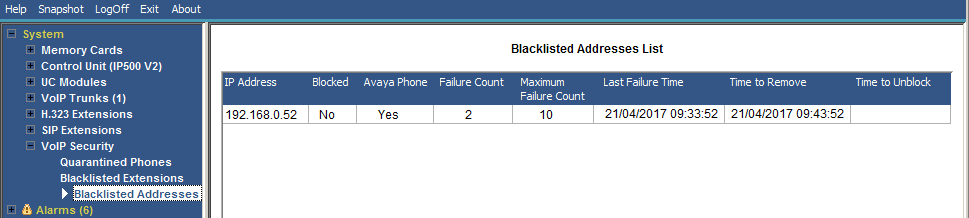
When an address becomes blocked, the system also generates an alarm in System Status and adds an entry to its audit log. A system alarm is also generated and can be output using any of the configurable system alarm routes (SMTP, SNMP, Syslog).
Note that the extension number of a phone attempting to register can also become blocked, see Blacklisted Extensions.
An IP address can become blacklisted for the following reasons:
Extension Registration Blacklisting
An extension that has repeatedly attempted to register an non-existing extension or to register an existing extension with the wrong password. Whilst blacklisted, further registration attempts are ignored even if they use the correct parameters. Note that the extension number of a phone attempting to register can also become blocked, see Blacklisted Extensions.
The use of IP address blacklisting can be disabled though the addition of the NoUser Source Number B_DISABLE_HTTP_IPADDR.
Application Blacklisting
An application trying to connection on port 443 or 8443 has repeatedly entered the wrong password. That can apply, for example, to web manager, system status and system monitor connections. Whilst blacklisted, further connected attempts are ignored.
The use of IP address blacklisting can be disabled though the addition of the NoUser Source Number B_DISABLE_HTTP_IPADDR.
SIP Invite Blacklisting
Repeated SIP invites to an unregistered extension.
The use of SIP Invite blacklist can be disabled through the addition of the NoUser source number B_DIS_UNREG_SIP_INVITE.
Excessive SIP Traffic Blacklisting
IP address blacklisting can be applied when the number of SIP messages (all types) from the same address exceeds a set rate. The default rate is 100,000 messages in 100 milliseconds. Unlike the options above, this blacklisting can only be manually removed.
The following NoUser source numbers can be used to alter the use of SIP traffic blacklisting:
-
B_RATE_DISABLE disables the functionality (Default = enabled)
-
B_RATE_HIGH_LIMIT=X where X is the number of SIP messages allowed within the time threshold. Default = 500, minimum = 1, maximum = 100,000.
-
B_RATE_HIGH_THRESH=Y where Y is the time threshold in milliseconds. Default = 100, minimum = 100, Maximum = 300,000 (5 minutes).
|
Name
|
Description
|
|---|---|
|
IP Address
|
The blacklisted IP address.
|
|
Blocked
|
Indicates whether the source IP address is now blocked from registering after exceeding the number of failed registration attempts.
|
|
Avaya Phone
|
Indicates whether the source is recognized as being an Avaya phone.
|
|
Failure Count
|
The number of registration attempt failures.
|
|
Maximum Failure Count
|
The number of registration failures at which the IP address will become/became blocked.
|
|
Last Failure
|
The date and time of the last failed registration attempt.
|
|
Time to Remove
|
The date and time at which the extension, if not blocked, will be removed from the blacklist if there are no further failed registration attempts.
|
|
Time to Unblock
|
The date and time at which the blocked extension will be unblocked and removed from the blacklist. For non- Avaya phones this will extend if the extension attempts to re-register again before this time.
|
|
Protocol
|
The connection protocol being used by the phone or application that is now blocked. For example; H323, SIP or HTTP.
SIP-Message Limiter is displayed for SIP message blacklisting. In this case, the blacklisting is not automatically removed but can be removed manually.
|
|
Client Name
|
The client name of the blocked application.
|
Buttons
The following buttons can appear on this screen:
|
Buttons
|
Description
|
|---|---|
|
Print...
|
Prints all information available in the current screen (including any information currently scrolled off).
|
|
Refresh
|
Updates the screen. This button appears on screens that do not update automatically.
|
|
Remove
|
Remove the currently selected entry from the list. This removes any blocking currently applied to that entry.
|
|
Remove All
|
Remove all the current entries from the list. This removes any blocking currently applied to those entries.
|
|
Save As...
|
Saves the information shown on the screen to a text file (TXT or CSV). You can only save trace screens as CSV text files.
|