AVAYA DOCUMENTATION CENTER
Find answers to your technical questions and learn how to use our products
Using IP Office System Status
Taking a Snapshot
To take a snapshot
- From System Status, click Snapshot in the menu bar.
- Select the type of snapshot:
ADDITIONAL INFORMATION:SettingDescriptionInclude switch configurationIf selected, the snapshot includes a copy of the system's configuration.
-
After taking the snapshot, in addition to viewing the snapshot in system status, you can open the snapshot in IP Office Manager to examine the system configuration. See Opening a Configuration.
-
To use this option, the account used to log in to System Status must have Read All Configuration enabled (see Assigning Security Settings).
Snapshot onlyIf selected, after clicking OK, System Status requests where you want to save the snapshot file. This creates a snapshot file with a .ssh file extension.Continuous logThis creates a snapshot file with a .slo file extension. If selected, after clicking OK, System Status displays the logging options menu.Figure: Snapshot Logging Settings 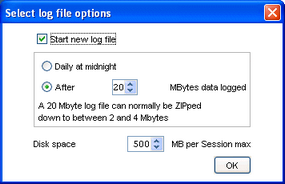 Note that with continuous logging, you must leave System Status running and cannot use it for other activities without first stopping the logging.
 -
- Select the settings required and click OK. System Status requests where you want to save the snapshot file or files.
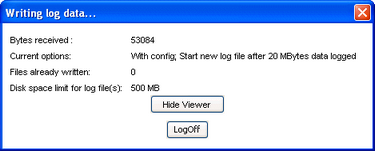
- If Continuous log was selected, the logging menu is displayed. Selecting LogOff ends logging and closes System Status.
ADDITIONAL INFORMATION:
Figure: Logging Menu