

AVAYA DOCUMENTATION CENTER
Find answers to your technical questions and learn how to use our products
Installing the Avaya Solutions Platform 130 Series
Checking information about the virtual disk
About this task
Use this procedure to check the basic properties of a specific virtual disk. This procedure is similar for both the Dell R660xs (H755) and Dell R640 (H730P and H750). Screenshots of H750 will be similar to H755.
Note:
The screenshots below are representative of systems with 600 GB HDDs.
Procedure
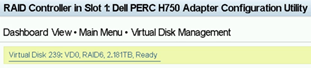
- In the Main Menu of Integrated RAID Controller 1: Dell <PERC H730P Mini> Configuration Utility or on the Main Menu of the RAID Controller in Slot 1: Dell PERC H750 Adapter Configuration Utility, click Virtual Disk Management.
The system shows the virtual disks available for software installation.

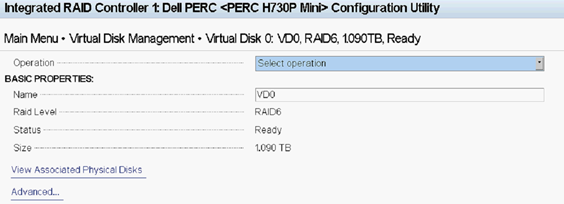
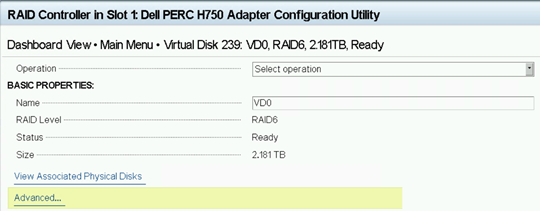
- Under Basic Properties, check the information about the virtual disk. You can see the following parameters of the virtual disk:
Name
RAID Level
Status
Size
Note:Notice that the H730 RAID Controller creates its first Virtual Disk starting as number 0 and increments up. Whereas the H750 and H755 Controller creates its first Virtual Disk as number 239 and decrements down in value. This is expected.
Result
Server RAID configuration is now complete. The created Virtual Drive is now available for software installation.
Go to Performing server recovery and/or software remastering for information on installation of KVM on Red Hat Enterprise Linux Software.