AVAYA DOCUMENTATION CENTER
Find answers to your technical questions and learn how to use our products
Installing the Avaya Solutions Platform 130 Series
Configuring SNMP v3 using iDRAC9
About this task
You can configure SNMP v3 traps for Dell R640 Avaya Solutions Platform 130 Appliance servers using the iDRAC9 interface.
Before you begin
Log into the iDRAC9 web interface using the IP address and login details that were specified while configuring iDRAC. See the Avaya Solutions Platform 130 Series iDRAC9 Best Practices document for configuring the iDRAC.
Procedure
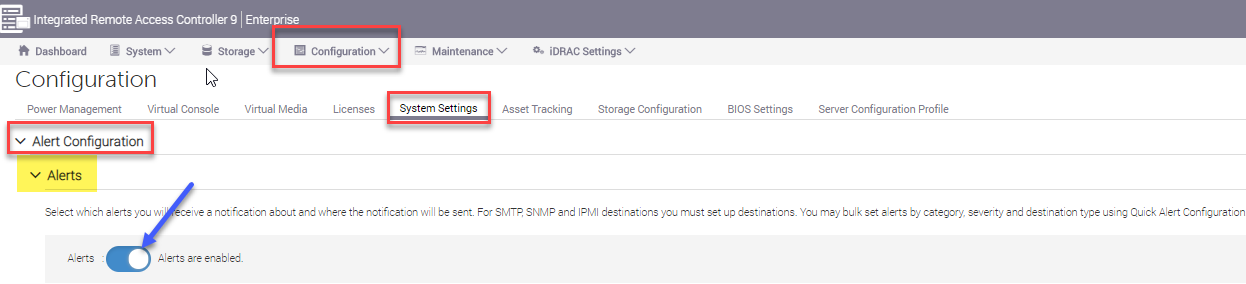
- Navigate to .
Under the Alerts options, enable Alerts by clicking on the round icon switch. It will move to the right, turning the area blue.
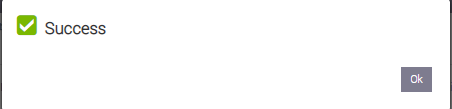
A Success message is displayed. Click OK.
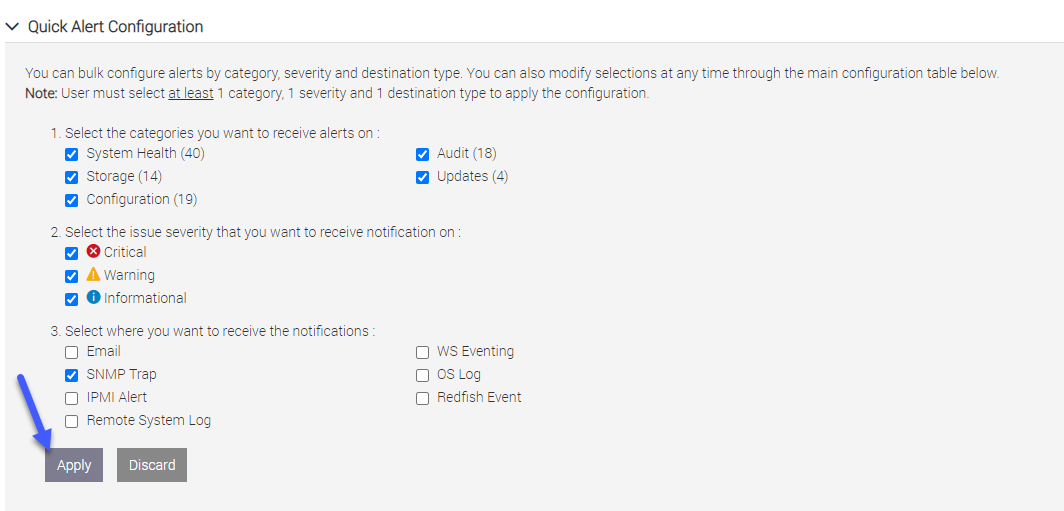
- Under Quick Alert Configuration, select the notification options shown below. Add in other options where customers require additional SNMP output or access to/from other monitoring devices. Click Apply to save changes.
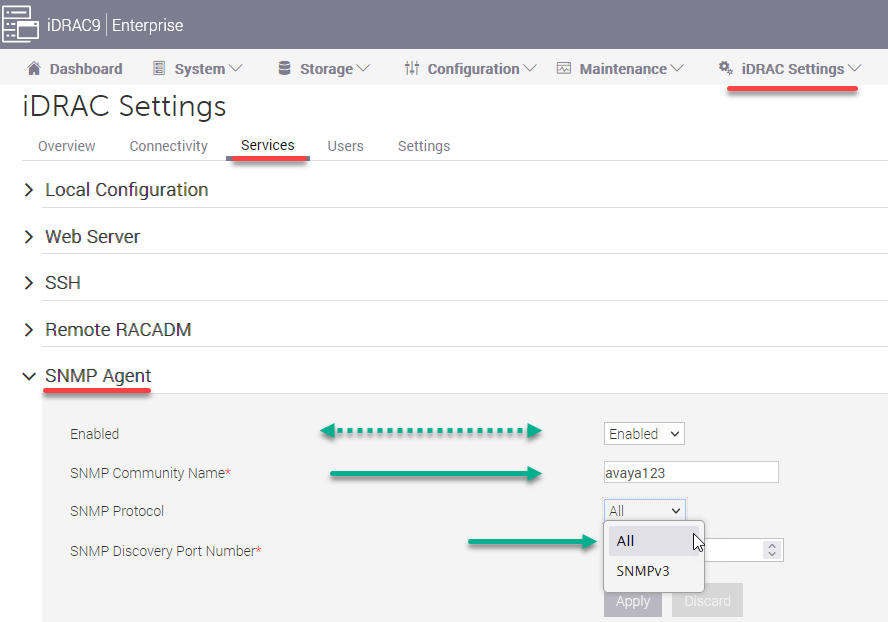
- Redirect to .
From the Enabled drop-down menu, select Enabled.
Enter the SNMP Community Name. The name Public is an indication of read-only access permitted by SNMP agents. Beginning with the release of ASP 130 5.0, Avaya's integrator changes the Community Name to Avaya123.
Note:Avaya strongly recommends changing the SNMP community name to a non-standard name for security purposes.
From the SNMP Protocol drop-down menu, select SNMP v3.
Note:When setting the SNMP Protocol to SNMP v3 it will disable SNMP v1/v2c on the system.
Click Apply to submit changes.
- Now configure the users to validate for secure SNMPv3 exchanges. Go to and click +Add to administer new user information.
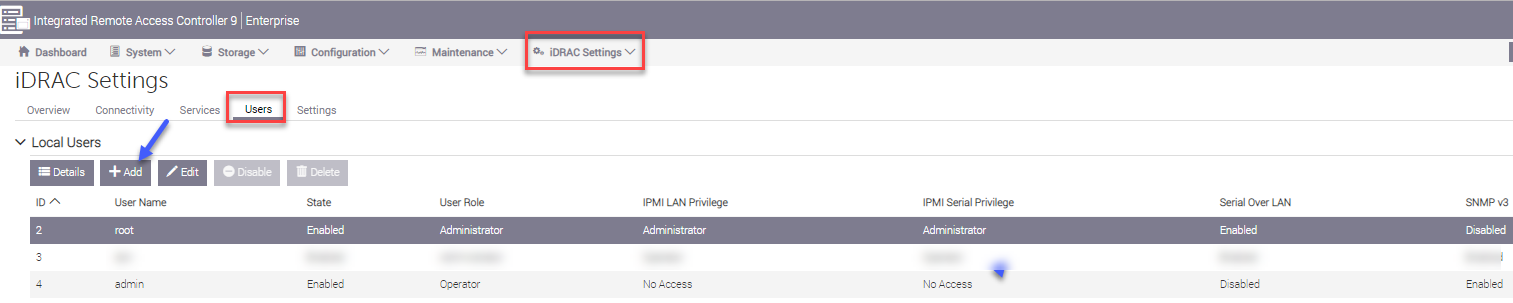
Note:You may use this form to enter a unique User Name and password for the Privacy and the Authentication protocols. You may also use the same User Name and password and assign them to both protocols. Determine which administrative method is preferred before proceeding.
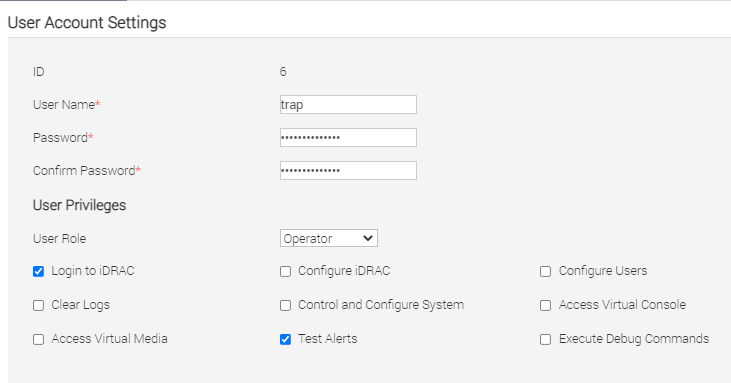
- Start by filling out the top part of the form: User Account Settings.
Leave the default ID number.
Enter a User Name.
Create a Password for the protocol(s) being administered.
Under User Privileges, there is no need to select anything if the trap receiver will never be accessing (logging into) the iDRAC for proactive state-of-health inquiries. If, however, the customer has a device that will be proactively accessing the iDRAC for SNMP status data and has requested the User be administered for such access, select Read Only from the User Role drop-down menu, and the Login to iDRAC box will be automatically selected. If Test Alerts are desired select that option and the User Role will change to Operator.
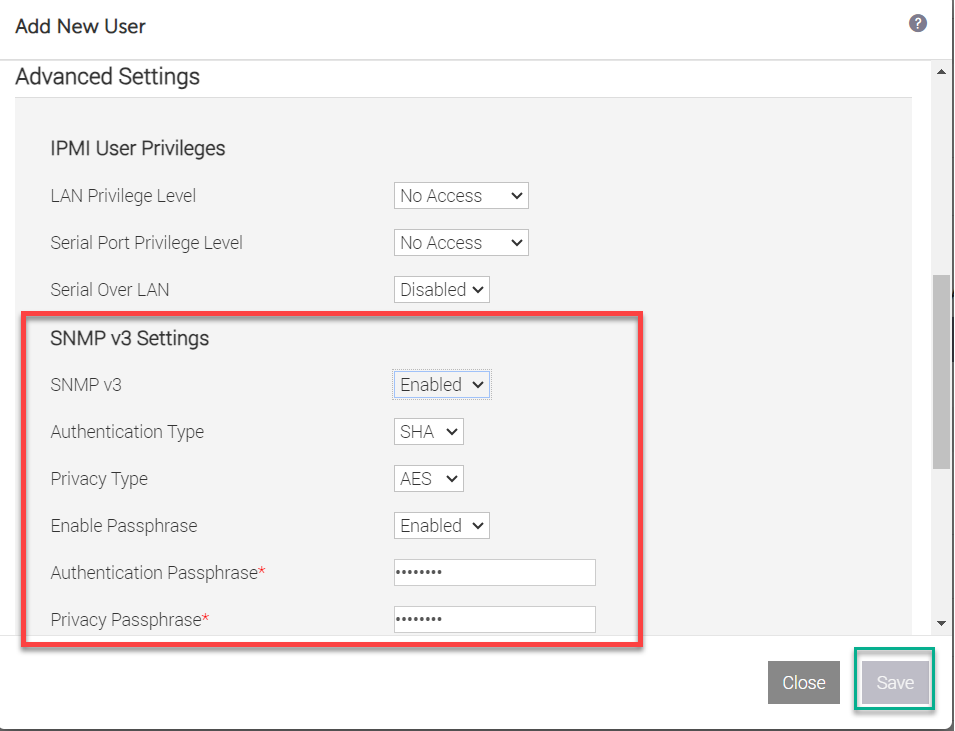
- Administer the bottom half of the form: by scrolling down.
From the SNMP v3 drop-down menu, select Enabled.
The next 2 boxes represent the protocols that are associated with the previously administered User information.
Select the appropriate authentication and privacy type required for this SNMP v3 User account.
If only 1 of the Authentication or Privacy types will be used with the SNMP v3 User, select the one required by specifying its encryption or hash type from the appropriate drop-down menu and select None for the other.
From the Enable Passphrase drop-down menu, select Enabled.
Note:Enable Passphrase only if Authentication and or Privacy type have been configured.
Enter the Authentication and Privacy Passphrase respectively for the previously selected hashes.
Click Save to apply the administration and then click Close.
Figure : 1. Adding a New User
- Return to .
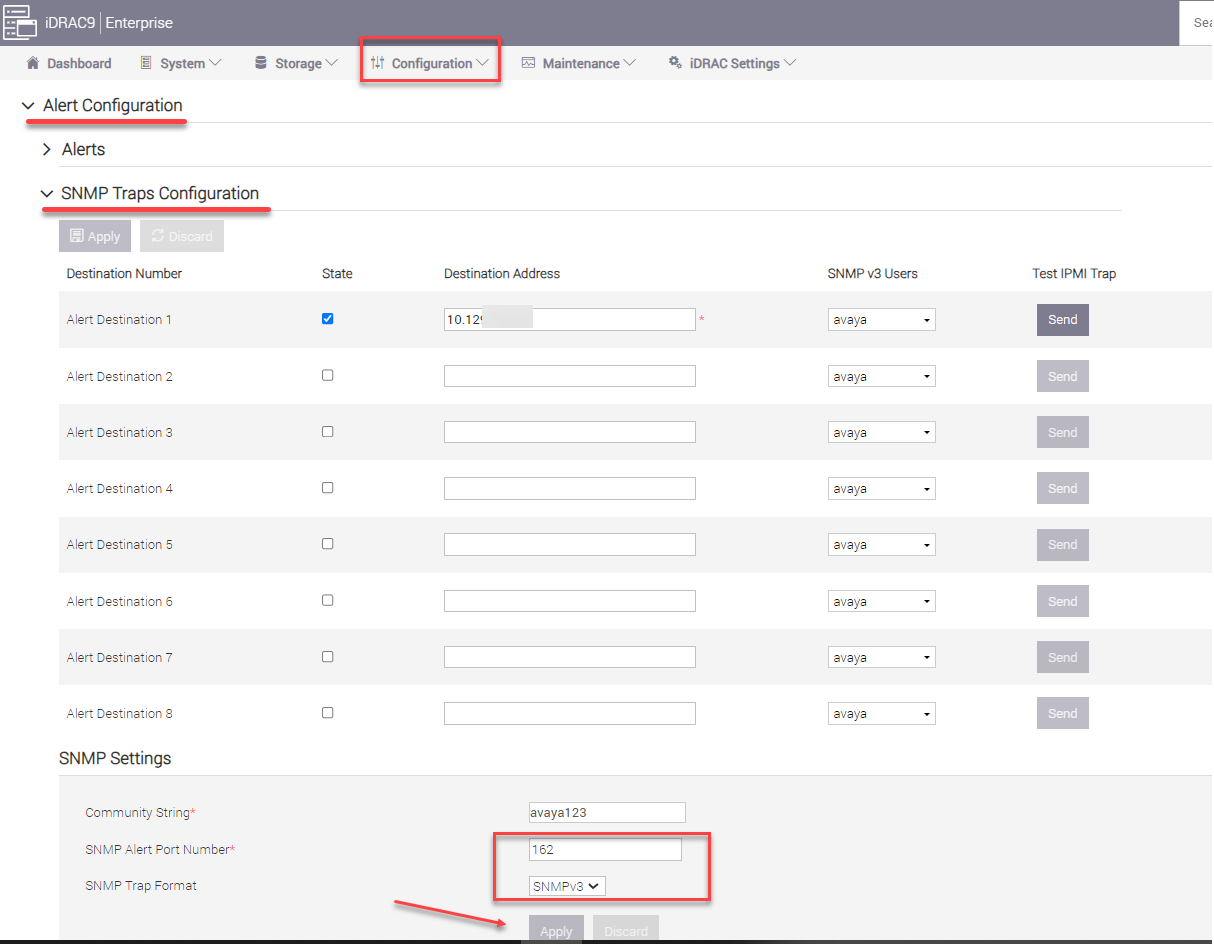
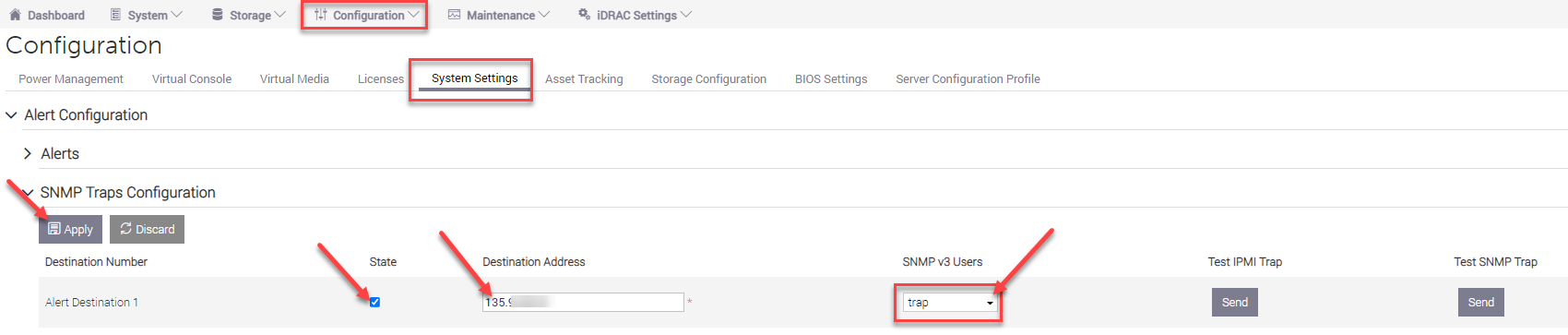
Enter the IP address of the SAL GW in the Destination Address field. If there is more than 1 destination address, enter those addresses in the next Destination Address field below.
Click the State box to enable SNMP traps to be sent to the administered location.
Click the SNMP v3 User account to be used for this destination address. This should populate with the user enabled for snmp v3 configured in the previous steps 4-6.
Click Apply to submit the new administration.
- Under the SNMP Settings area:
Enter the desired community string.
You may leave the default of alert port 162; this is the standard SNMP receiving port. You may also enter a different port number, but remember to match this port in both the sending and receiving devices.
From the drop-down menu for SNMP Trap Format, select SNMPv3.
Select Apply when settings are complete.
Figure : 2. Configuring SNMP Traps