

AVAYA DOCUMENTATION CENTER
Find answers to your technical questions and learn how to use our products
Maintaining and Troubleshooting Avaya Solutions Platform 130 Series
Power supply problems
Problems
Refer to the following points to prevent basic power supply problems:
Avoid loose connections. For example, loose power cables.
Check the power supply handle LED and ensure it indicates that the power supply is working properly.
Use only power supply units supplied by Avaya.
After installing a power supply unit, allow some time for the system to recognize the power supply unit and determine if it is working properly.
AC PSU status indicator
AC power supply units (PSUs) have an illuminated translucent handle that serves as an indicator.
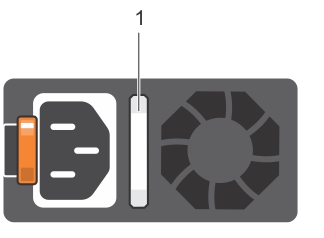
Power Indicator Pattern |
Condition |
|---|---|
Green |
A valid power source is connected to the PSU and the PSU is operational. |
Blinking amber |
Indicates a problem with the PSU. |
Not illuminated |
Power is not connected. |
Blinking green |
When the firmware of the PSU is being updated, the PSU handle blinks green.
Caution:
Do not disconnect the power cord or unplug the PSU when updating firmware. If firmware update is interrupted, the PSUs do not function. |
Blinking green and turns off |
When hot-plugging a PSU, the PSU handle blinks green five times at a rate of 4 Hz and turns off. This indicates a PSU mismatch with respect to efficiency, feature set, health status, or supported voltage.
Caution:
|
DC Power Supply
Important:
The DC power supply is not supported by Avaya.