

AVAYA DOCUMENTATION CENTER
Find answers to your technical questions and learn how to use our products
Maintaining and Troubleshooting Avaya Solutions Platform 130 Series
Front LCD panel
Use Front LCD panel to identify hardware status and problems with the server.
The LCD panel is available only on the optional front bezel. The optional front bezel is hot pluggable.
The LCD panel provides system information, status, and error messages, to indicate if the system is operating correctly.
The LCD backlight is white during normal operating condition
When the system needs attention, the LCD backlight turns amber, and displays an error code followed by descriptive text.
When the system turns off and there are no errors, LCD enters standby mode after five minutes of inactivity. Press any button on the LCD to turn it on.
If the LCD panel stops responding, remove the bezel and reinstall it.
The LCD backlight remains turned off if LCD messaging is turned off using the iDRAC utility, the LCD panel, or other tools.
Note:
If the system is connected to a power source and an error is detected, the LCD turns amber regardless of whether the system is turned on or off.
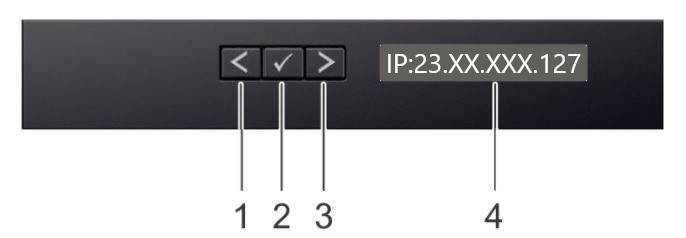
Item |
Button |
Description |
|---|---|---|
1 |
Left |
Move the cursor back in one-step increments |
2 |
Select |
Select the menu item highlighted by the cursor |
3 |
Right |
Move the cursor forward in one-step increments. During message scrolling:
|
4 |
LCD display |
Displays system information, status, and error messages or iDRAC IP address. The name Avaya will appear in this field if there are no errors to display |