AVAYA DOCUMENTATION CENTER
Find answers to your technical questions and learn how to use our products
Deploying Avaya IP Office™ Platform SSL VPN Services
Appendix A: AVG Quick Setup Wizard Example
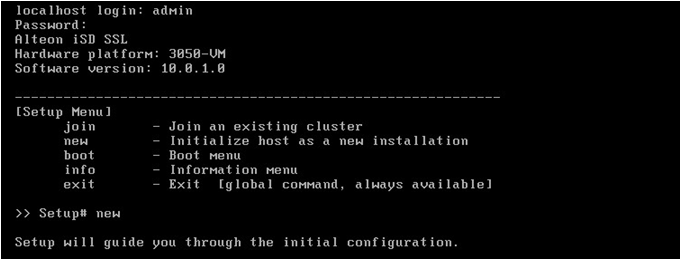
To launch the wizard, boot up a new AVG image. In the console, when the localhost login: prompt is displayed, log in as user "admin" password "admin". The wizard menu opens. Select new and follow the instructions.
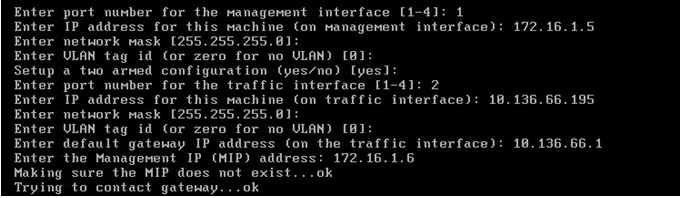
Configure the AVG Interfaces
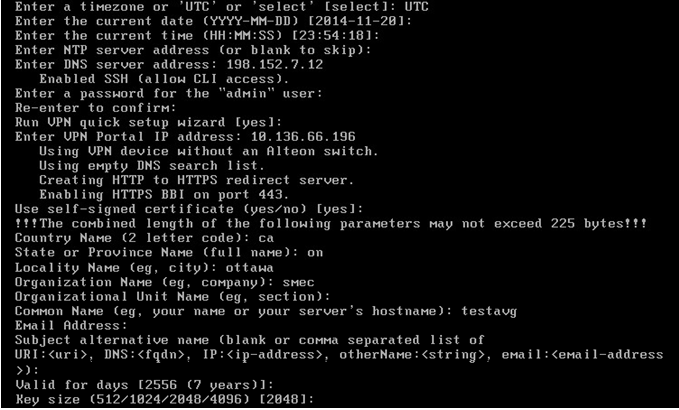
Configure the Self-Signed Certificate
Option 1: Configure Local IP Pool

Option 2: Configure RADIUS Server

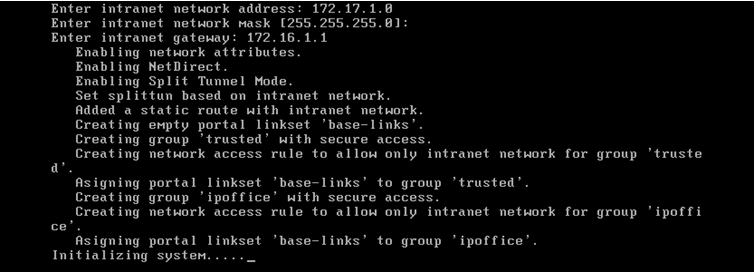
Configure the Service Agent Subnet
Note:
If the service agent subnet is on the same subnet as the AVG host interface, for example 172.16.1.0 netmask 255.255.255.0, you receive a prompt for the gateway even though it is not configured or used. If the host interface subnet has a default gateway available, use that gateway IP address (e.g. 172.16.1.1). Otherwise, enter the subnet address again (e.g. 172.16.1.0).
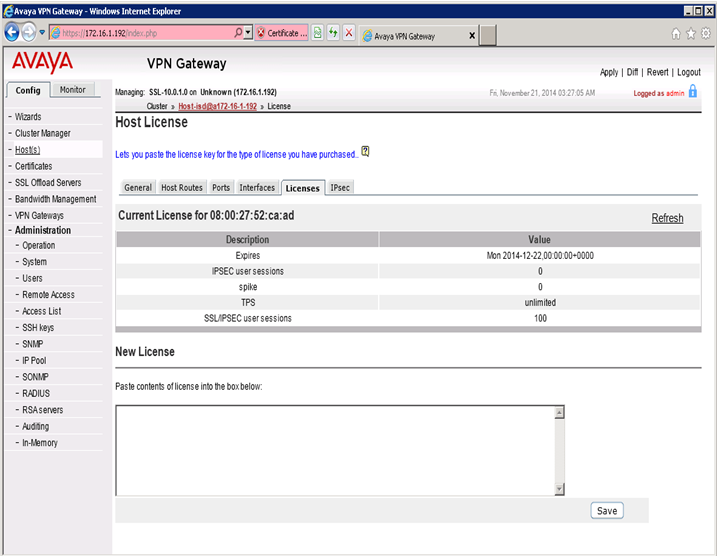
Adding the SSL VPN License
Log in to the AVG interface to add a license.
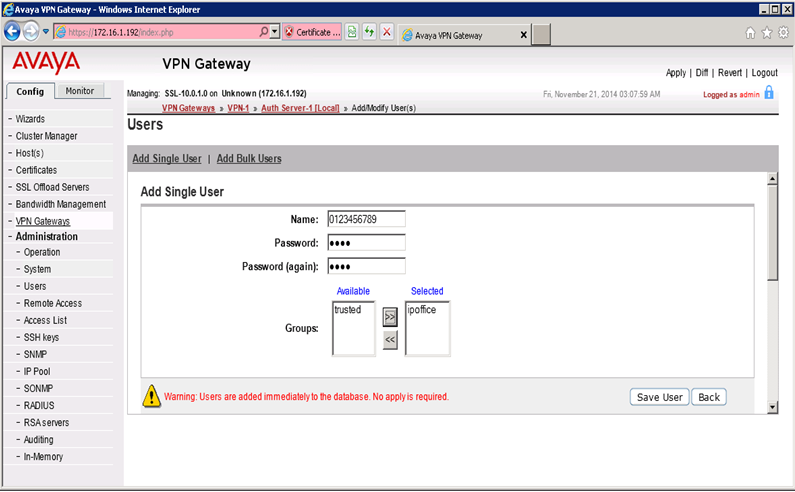
Adding a User
The configuration is complete.
If you used option 1, configure local IP Pool, you can now add users in the local AVG database. Users must be part of the ipoffice group.