

AVAYA DOCUMENTATION CENTER
Find answers to your technical questions and learn how to use our products
Avaya CMS Supervisor Report Designer
The Save Report page
Use the Save Report page to save your report and define who has permission to access your report. Your report will be saved when you enter a report name and select Next. The report type and data group selections you made for your report will determine the category your report will be saved under. For example, Real-Time.
You are not required to save your report at this time. If you do not save your report, Report Wizard will still allow you to advance to the next page.
Important:
If you do not enter a report name, your report will not be saved when you advance to the Finish page. Report Wizard will discard your report if you do not save your report on either the Save Report page or the Finish page.
Example
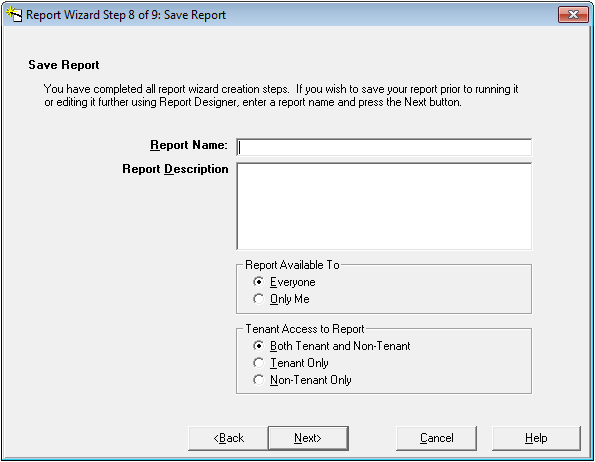
Save Report field descriptions
The following table describes the fields on the Save Report page.
Name |
Description |
|---|---|
Report Name |
Allows you to enter a name for your report. If there is an existing report with the same name, and you are not the owner of this report, Report Wizard will not allow you to overwrite the existing report. |
Report Description |
Provides a space for you to write a description of your report. |
Everyone |
Anyone can run the report and copy the report design. The CMS user permission structure is still applicable. |
Only Me |
The only users that can run the report and copy the design are you and CMS administrators. |
Both Tenant and Non-Tenant |
Users assigned to the tenant have access to both tenant and non-tenant reports. |
Tenant Only |
Users assigned to the tenant have access to only tenant reports. |
Non-tenant Only |
Users assigned to the tenant have access to only non-tenant reports. |