

AVAYA DOCUMENTATION CENTER
Find answers to your technical questions and learn how to use our products
Configuring Workflows for Avaya Experience Platform Public Cloud
Configuring a dynamic path
You can modify a default dynamic path according to your needs. A dynamic path is configurable on the interaction level. For each interaction, you can set up multiple paths depending on the respondent answers.
- Locate the required flow and click
 .
. - In the top navigation bar, click the Dynamic Path tab.
- In the list of interactions, navigate to the required interaction and click
 to expand information about the interaction path.
ADDITIONAL INFORMATION:In the expanded view, Automation displays information about the path and the target interaction in one part of the expanded area and the visual representation of the flow in the other part of the expanded area.
to expand information about the interaction path.
ADDITIONAL INFORMATION:In the expanded view, Automation displays information about the path and the target interaction in one part of the expanded area and the visual representation of the flow in the other part of the expanded area. - To add a new path and target interaction, click .
ADDITIONAL INFORMATION:You can create multiple paths for an interaction.STEP RESULT:Automation displays the Path Editor window.
- In the Path Editor window, do the following:
- Click New Path....
- In the Tag field, type a tag name.
ADDITIONAL INFORMATION:Type a meaningful tag name because Automation uses the tag to define the path in the flowchart.
- Select the question.
- Select the condition.
ADDITIONAL INFORMATION:If you have questions of True/False type, in the list of conditions, you can find the option names.
- Select the target interaction.
- To set up complex conditions, click
 and additionally select one of the following operators:
ADDITIONAL INFORMATION:
and additionally select one of the following operators:
ADDITIONAL INFORMATION:-
AND: The complex condition evaluates to true only if all simple conditions are met.
-
OR: The complex condition evaluates to true when at least one simple condition is met.
-
- Click Save.
- Repeat steps 3 - 5 to configure paths for other interactions.
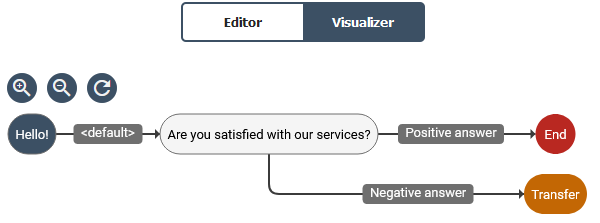
In a flow with two interactions which you can identify by the interaction name, the tags help to identify the path between the nodes. For example, for an interaction named Are you satisfied with our services?, you can see two paths with the following tags:
-
Positive answer: If the respondent answers Yes, the Automation flow ends and Orchestration applies the No agent needed option of the Start Automation task.
-
Negative answer: If the respondent answers No, the Automation flow ends and Orchestration applies the Connect with agent option of the Start Automation task.