

AVAYA DOCUMENTATION CENTER
Find answers to your technical questions and learn how to use our products
Administering Avaya Aura® Session Manager
Export Users field descriptions
Export File Type Options
|
Name
|
Description
|
|---|---|
|
Select Export File Types
|
The file type to which you want to export the users. The options are:
Note:
Select at least one option. If you do not select a file type, and click Export, the export operation does not start. The page displays the message Export File Type/Types Not Selected. Select Export File Types Xml or Excel or Both.
If you select only Excel, the system automatically clears the Contacts check box in User Attribute Options because excel file does not support importing and exporting user contacts. The page also displays a message Excel file does not support contacts beside the Contacts check box.
|
User Attribute Options
|
Name
|
Description
|
|---|---|
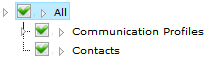 |
User attribute options that an export administrator can choose to export for an export job.
The options are:
Important:
If the exported file is used to import by using the replace option, the import operation replaces the existing user data from the system with user data in the exported file that might be incomplete because of the filter applied during the export.
|
Delta Period options
The Delta Period Options section is available only if you select the Export Delta Users option.
|
Name
|
Description
|
|---|---|
|
Select the delta period
|
Following are the delta period options:
Note:
The system creates the XML and Excel file even if there are no added or updated users in the specified delta period. If there are no added or updated users in the specified delta period then the XML and Excel files contain zero users data. However, the system creates the .txt file only if there are any permanently deleted users in the specified delta period.
|
Schedule
|
Name
|
Description
|
|---|---|
|
Schedule Job
|
The settings to configure the schedule of the job. The options are:
|
|
Date
|
The date when you must run the export job. The date format is mm dd yyyy. You can use the calendar icon to choose a date.
This field is available when you select the Schedule later option for scheduling a job.
|
|
Time
|
The time of running the export job. The time format is hh:mm:ss and 12 (AM or PM) or 24–hour format.
This field is available when you select the Schedule later option for scheduling a job.
|
|
Time Zone
|
The time zone of your region.
This field is available when you select the Schedule later option for scheduling a job.
|
|
Recurrence
|
Following are the options:
Note:
The delta period selected for the Export Delta Users option for scheduled or recurring jobs will consider the exact delta period past to the exact start date and time of execution of the scheduled jobs.
For example, if a delta export job is scheduled to run on December 17, 2017 at 2:00 p.m. with the delta period of One Day, then the delta of users is identified from December 16, 2017 from 2.00 p.m.
For recurrence jobs, if a job is configured to run multiple times then the last exported zip file with the name <Scheduled Job Name>.zip will be available on the Export Users page for download. However, the previously exported zip files will be stored in the /var/avaya/bulkadministration/export/ directory with the name <Scheduled Job_Date_time_In_UTC>.zip.
Where Date_time_In_UTC is the date and time in UTC when the file was last-updated or created in the last run of the job.
For example, if the admin started a recurring job at 18 Dec 2017 14:32:26 UTC to run for say 3 recurrences daily then after the completion of all 3 recurrences there will be 3 files available in the /var/avaya/bulkadministration/export/ directory with following names: users_1503066729239_18-Dec-2017_14:32:37_UTC.zip, users_1503066729239_19-Dec-2017_14:32:32_UTC.zip, and users_1503066729239.zip.
|
|
Range
|
Following are the options:
|
|
Button
|
Description
|
|---|---|
|
Export
|
Exports or schedules the export job based on the option that you selected.
|
Export List
|
Name
|
Description
|
|---|---|
|
Select check box
|
The option to select a job.
|
|
Start Time
|
The date and time when the job was scheduled.
|
|
Status
|
The status of the job. The options are:
|
|
Scheduled Job
|
A key to the Scheduler page. You can cancel the job from the Scheduler page.
|
|
% Complete
|
The job completion status in percentage.
|
|
User Records
|
The total number of user records that are marked for export.
|
|
Failed Records
|
The number of user records that failed to export.
|
|
Download File
|
The link to download the zip file that contains XML and Excel files.
|
|
Button
|
Description
|
|---|---|
|
View
|
Displays the details of the selected job.
|
|
Stop
|
Stops the export operation for the selected job.
|
|
Delete
|
Deletes the job that you selected.
|
|
Refresh
|
Refreshes the job details.
|
|
Select: All
|
Selects all the jobs from the list.
|
|
Select: None
|
Clears the check box selections.
|
|
Previous
|
Displays jobs in the previous page.
|
|
Next
|
Displays jobs in the next page.
|
|
Done
|
Returns to the User Management page.
|