

AVAYA DOCUMENTATION CENTER
Find answers to your technical questions and learn how to use our products
Deploying Avaya Aura® Device Services
Cloning a Virtual Machine on ASP
Use this procedure to create a clone for backup purposes.
Before you begin
-
Ensure there is sufficient space to create the Virtual Machine Backup (clone). Clones are created as “thick provisioned” and require the same size as the virtual machine you are cloning.
-
Refer to application documentation for guidelines on storage requirements for different application profiles.
-
Shut down the virtual machine for which you are creating a backup (clone). This is a service impacting activity. Perform these steps within a customer-approved maintenance window.
Note:
You must be root or use sudo with custadm account for CLI commands, and you must enable Administrative access when using the Cockpit user interface.
Note:
These clones must be created through the CLI as the Cockpit UI does not support the necessary required options.
- Log in to the KVM Cockpit web console as custadm in the following format: https://<IP address or FQDN of KVM host>:9090.
- For administration actions, on the top-right of the window, click on the Limited access button.
ADDITIONAL INFORMATION:
Figure: Limited access button  Note:You require administrator access in order to view virtual machines. Administrator access is like root access. Ensure that you take care making updates.
 - In the Switch to administrative access window, enter the password for custadm.
ADDITIONAL INFORMATION:
Figure: Switch to administrative access 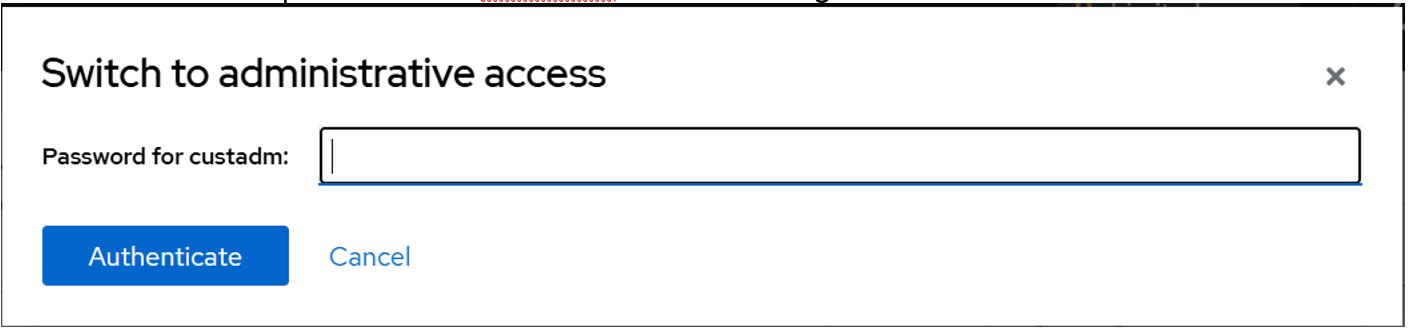 The Limited access button on the top-right of the window changes to Administrative access.
Figure: Administrative access button 
- Navigate to .
ADDITIONAL INFORMATION:The Name guest_images is a label for /var/lib/libvirt/images. If you select guest_images, you can see additional information. If you select Storage Volumes, you can view all images in the /var/lib/libvirt/images directory.
- Review the images and remove any of them that you no longer use.
ADDITIONAL INFORMATION:Images that do not have a ‘Used by’ value are typically safe to remove.
- Confirm that you have the necessary space for your clone.
- Log in to the Avaya Solutions Platform R6.0.x Command Line Interface (CLI) as custadm.
- Run the following command to obtain a list of all virtual machines:
ADDITIONAL INFORMATION:sudo virsh list --allExample output:
[custadm@asp130-r660xs-a31p ~]# sudo virsh list --all

 Id          Name                             State9
  ------------------------------------------------------------
 1           8HDD-RHEL-810-Fiotester2         running
 2           8HDD-RHEL810-Fiotester1          running
 -           8HDD-RHEL-810-Fiotester3         shut off
 -           8HDD-RHEL-810-Fiotester3-Clone   shut off
 -           8HDD-RHEL-810-Fiotester3-clone   shut off
 -           Agent_Testing                    shut off
 -           Agent_Testing-Clone              shut off
 -           Agent_Testing2                   shut off
 -           Agent_Testing3                   shut off
In this example, the virtual machine Agent_Testing3 is shut off state, ready for backup (clone). - Run the following command to backup (clone) the virtual machine. You must use the nonsparse option to ensure the clone is created as thick provisioned.
ADDITIONAL INFORMATION:sudo virt-clone --original <Domain-to-be-cloned> --auto-clone --nonsparseExample output:sudo virt-clone --original Agent_Testing3 --auto-clone --nonsparseAllocating 'RHEL810-agenttestvm3-fat-clone.qcow2' | 50 GB 00:01:06Clone 'Agent_Testing3-clone1' created successfully.STEP RESULT:This command creates a backup (clone) with default values. You can create a clone with any name for the virtual machine and QCOW2 labels by specifying a full path and using the following command:sudo virt-clone --original <VM Domain> --name <Clone VM Label> --file /var/lib/libvirt/images/<VM Domain QCOW2 file name>.qcow2 --nonsparseExample for single QCOW2 image:sudo virt-clone --original RHEL810-fiotester1 --name RHEL810-fiotester2 --file /var/lib/libvirt/images/RHEL810-fiotester2.qcow2 --nonsparseExample for multiple QCOW2 images:sudo virt-clone --original Duplex_Active_974 --name Duplex_Active_974_CloneTest --file /var/lib/libvirt/images/Duplex_Active_974_CloneTest_system.qcow2 --nonsparse --file /var/lib/libvirt/images/Duplex_Active_974_CloneTest_Var_Disk.qcow2 --nonsparseNote:Completion time varies depending on the size of original virtual machine disk.