AVAYA DOCUMENTATION CENTER
Find answers to your technical questions and learn how to use our products
Deploying Avaya Aura® Device Services
Validating a Virtual Machine Backup (clone)
- Login to the Avaya Solutions Platform Command Line Interface (CLI) as custadm.
- Run the following command to validate the backup (clone):
ADDITIONAL INFORMATION:sudo virsh list --allExample output:
[custadm@asp130-r660xs-a31p ~]# sudo virsh list --all

 Id      Name                            State9
 ------------------------------------------------------------
 1       8HDD-RHEL-810-Fiotester2        running
 2       8HDD-RHEL810-Fiotester1         running
 -       8HDD-RHEL-810-Fiotester3        shut off
 -       8HDD-RHEL-810-Fiotester3-Clone  shut off
 -       8HDD-RHEL-810-Fiotester3-clone  shut off
 -       Agent_Testing                   shut off
 -       Agent_Testing-Clone             shut off
 -       Agent_Testing2                  shut off
 -       Agent_Testing3                  shut off
 -       Agent_Testing3-clone            shut off
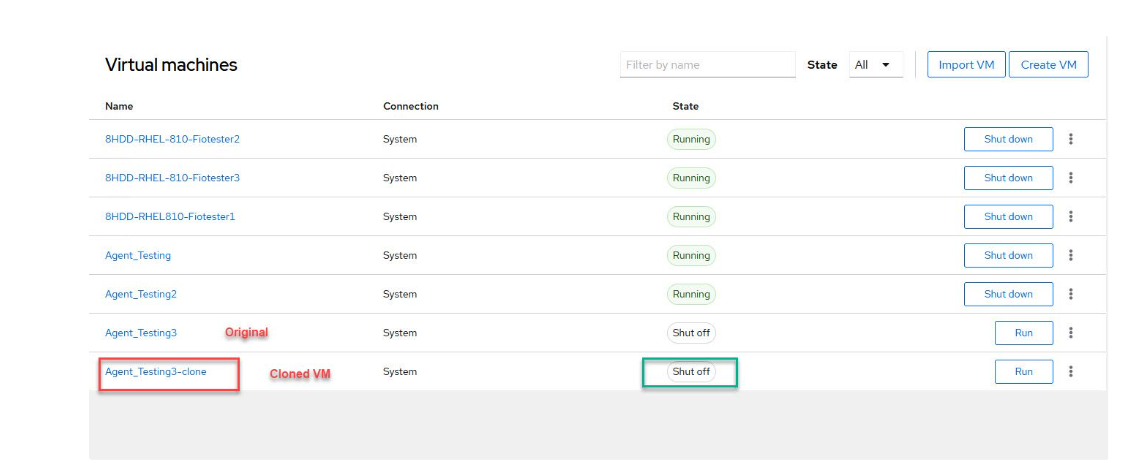
In this example, the virtual machine Agent_Testing3-clone is the cloned virtual machine. - Confirm that the clone is thick provisioned by running the following command on the clone and ensuring that the virtual size is the same as the disk size:
ADDITIONAL INFORMATION:cd /var/lib/libvirt/imagessudo qemu-img info <clone name>Example output:cd /var/lib/libvirt/imagessudo qemu-img info Agent_Testing3-clone.qcow2image: Agent_Testing3-clone.qcow2file format: qcow2virtual size: 50 GiB (53687091200 bytes)disk size: 50 GiBcluster_size: 65536Format specific information:compat: 1.1compression type: zliblazy refcounts: truerefcount bits: 16corrupt: falseextended l2: false
- Run the following command to ensure that the virtual machine is cloned with the same disk name that is provided during the backup (clone):
ADDITIONAL INFORMATION:sudo virsh domblklist <cloned VM name>_8_1ADDITIONAL INFORMATION:For example, the output of the command appears as follows:ADDITIONAL INFORMATION:hda /var/lib/libvirt/images/RHEL9.6-fiotester2.qcow2
- Log in to the KVM Cockpit web console as custadm in the following format: https://<IP address or FQDN of KVM host>:9090.
- For administration actions, on the top-right of the window, click on the Limited access button.
ADDITIONAL INFORMATION:
Figure: Limited access button  Note:You require administrator access in order to view virtual machines. Administrator access is like root access. Ensure that you take care making updates.
 - In the Switch to administrative access window, enter the password for custadm.
ADDITIONAL INFORMATION:
Figure: Switch to administrative access 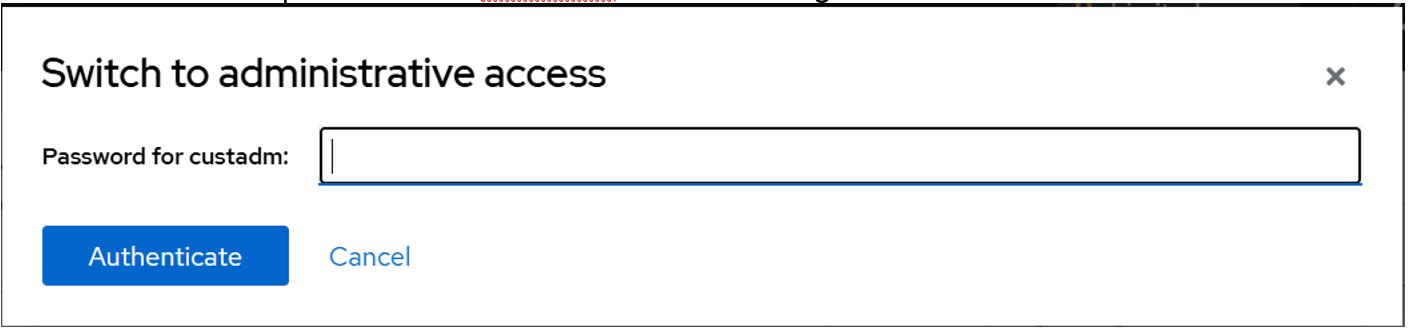 The Limited access button on the top-right of the window changes to Administrative access.
Figure: Administrative access button 
- Navigate to .
- View the cloned virtual machine in the virtual machines list.
ADDITIONAL INFORMATION:
Figure: Virtual machines list