

AVAYA DOCUMENTATION CENTER
Find answers to your technical questions and learn how to use our products
Deploying MS Teams Direct Routing with IP Office
Create a SIP Server for MS Teams
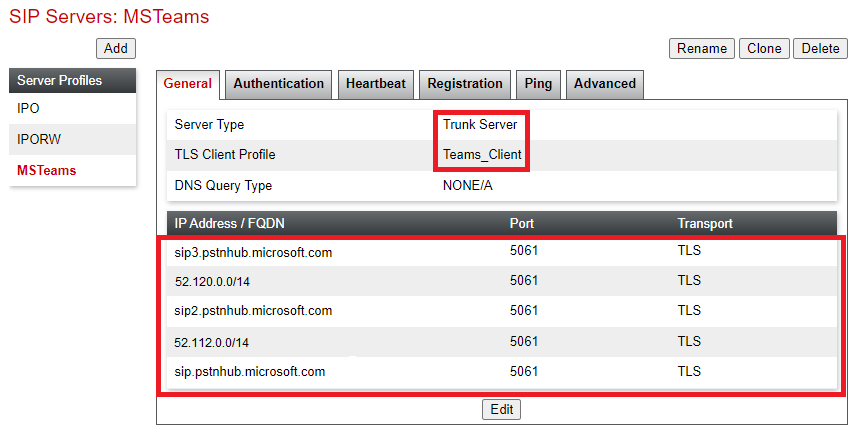
Create a SIP Server record for MS Teams as below.
-
Note: The use of CIDR IP address ranges requires the ASBCE to be running 10.1 plus Hotfix 1 (ASBCE R10.1.0.0 plus sbce-10.1.0.0-34-21958-hotfix-05192022).
Before you begin
- Select Services and then SIP Servers.
- Click Add and add a SIP server profile for MS Teams.
- Enter a Profile Name. Click Next.
- In the General Settings menu:
- Set the Server Type to Trunk Server.
- Set the TLS Client Profile to the one previously created for the MS Teams connection.
- Add the following entries for the address/port/transport settings:
ADDITIONAL INFORMATION:IP Address/FQDN/CIDR RangePortTransport
sip.pstnhub.microsoft.com5061TLS52.112.0.0/145061TLSsip2.pstnhub.microsoft.com5061TLS52.120.0.0/145061TLSsip3.pstnhub.microsoft.com5061TLS - Click Next.
- There are no changes to the default Authentication settings. Click Next.
- In the Heartbeat settings:
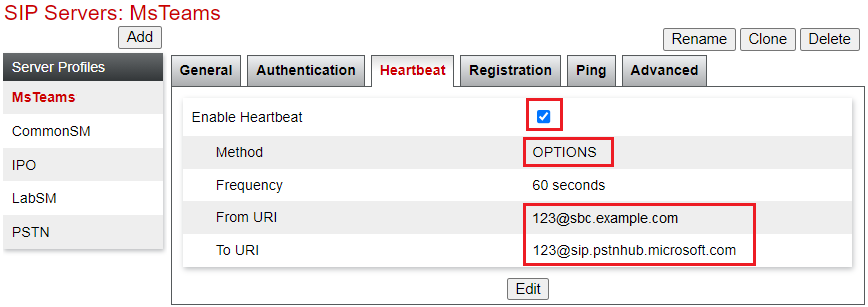
- Select Enable heartbeat.
- Set the Frequency to 60.
- For the From URI and To URI, add dummy addresses using the ASBCE and MS Teams FQDN's respectively.
- Click Next.
- There are no changes to the default Registration and Ping settings. Click Next to skip each.
- In the Advanced settings:
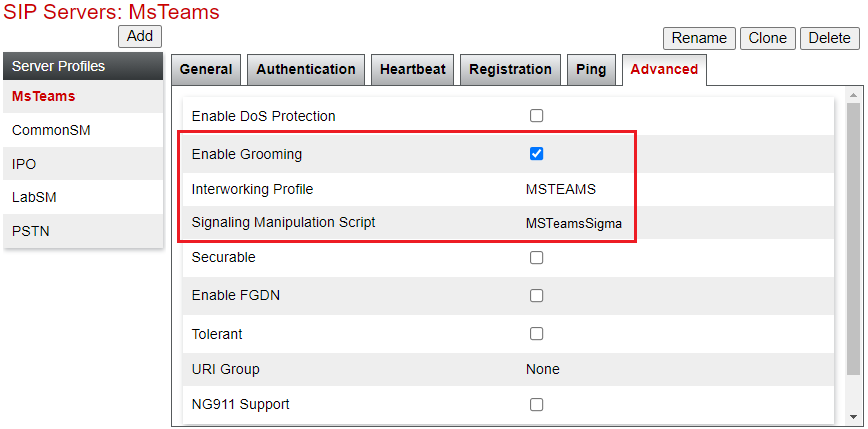
- Enable Grooming - Enable this setting.
- Interworking Profile - Select the interworking profile previously created for MS Teams.
- Signaling Manipulation Script - Select the SIGMA script uploaded for MS Teams.
- Click Finish.
- The settings will look like the following example:
ADDITIONAL INFORMATION:
Next steps