

AVAYA DOCUMENTATION CENTER
Find answers to your technical questions and learn how to use our products
Deploying MS Teams Direct Routing with IP Office
Generating an Identity Certificate using IP Office Web Manager
When the IP Office is using self-signed certificates, it can also generate an identity certificate for the ASBCE to use for its connections to the IP Office.
-
This process is only for subscription mode IP Office systems using Automatic Certificate Management. For other systems, see Generating an Identity Certificate using IP Office Web Manager.
- Login to IP Office Web Manager for the subscription mode IP Office system.
- Select .
- If the system is in a Server Edition network, click on the
 next to the primary server.
 - Select Certificates.
- Click Regenerate.
- Enable For Different Machine.
ADDITIONAL INFORMATION:
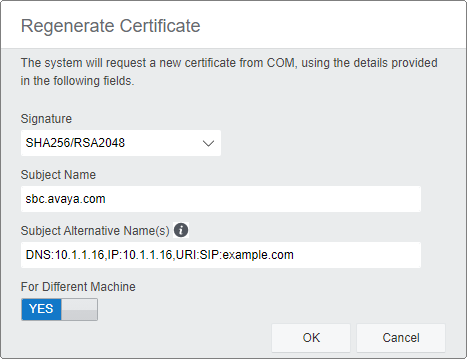
- In Subject Name enter the FQDN of the ASBCE.
- In Subject Alternative Name(s), enter any additional values for other IP Office servers and services to which the ASBCE may also need to connect.
- Click OK. Wait up to a minute whilst the IP Office generates the certificate.
- When prompted, set an encryption password for the identity certificate and click Yes.
- The browser will prompt you to download and save the certificate file.
Next steps