

AVAYA DOCUMENTATION CENTER
Find answers to your technical questions and learn how to use our products
Deploying MS Teams Direct Routing with IP Office
Generating an Identity Certificate using IP Office Web Control/Platform View
When the IP Office is using self-signed certificates, it can also generate an identity certificate for the ASBCE to use for its connections to the IP Office.
-
For IP Office subscription mode systems using Automatic Certificate Management, see Generating an Identity Certificate using IP Office Web Manager.
- Login to the IP Office Web Control/Platform View by either:
-
In IP Office Web Manager, select the primary server. Click on
 and select Platform View.
-
Browse to https://<IP Office IP address>:7071 and login as the Administrator.
-
- Go to Settings tab and scroll down to Certificates.
- Check Create certificate for a different machine.
ADDITIONAL INFORMATION:
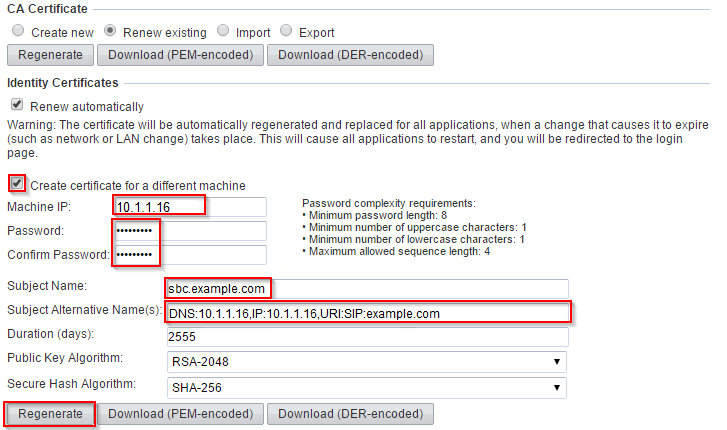
- Enter the following data:
- Machine IP - Enter the internal IP address of the ASBCE. That is, either the A1 or A2 interface of the ASBCE to which the IP Office connects.
- Password - Enter a password to encrypt the certificate and key.
- Subject Name - Enter the FQDN of the ASBCE.
- Subject Alternative Name(s) - Enter comma separate values for the
DNS:<FQDN>andIP:<IP address>.
- Click Regenerate.
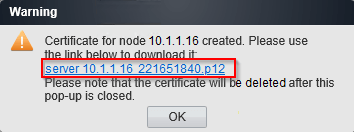
- Click on the link in the popup window and save the file.
ADDITIONAL INFORMATION:
Next steps