

AVAYA DOCUMENTATION CENTER
Find answers to your technical questions and learn how to use our products
Deploying MS Teams Direct Routing with IP Office
Adding the Root Certificates to the ASBCE
The following process adds the MS Teams and IP Office root certificates to the ASBCE.
Before you begin
- Login to ASBCE web interface.
- Go to .
- For the IP Office root certificate:
- Click Install.
ADDITIONAL INFORMATION:
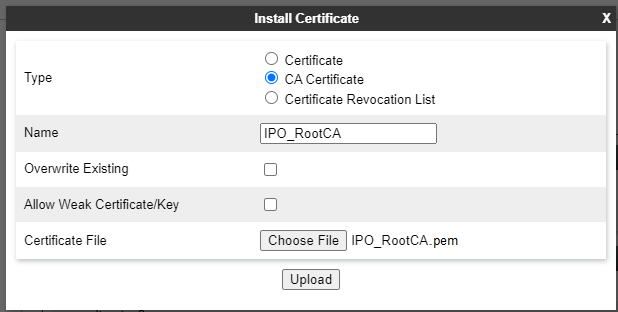
- Type - Select CA Certificate.
- Name - Enter a unique descriptive name for the root CA certificate.
- Allow Weak Certificate/Key - Enable this option.
- Certificate File - Click Choose File and select the IP Office certificate file. For our example, this is the IPO_RootCA.pem certificate file.
- Click Upload. If the ASBCE displays a warning that this is a self-signed certificate, click Proceed.
- The ASBCE displays the certificate. Click Install and then Finish.
- Click Install.
- For the MS Teams root certificate:
- Repeat the process for the MS Teams root certificate. For our example, this is the DigiCertGlobalRootG2.crt certificate file.
ADDITIONAL INFORMATION:
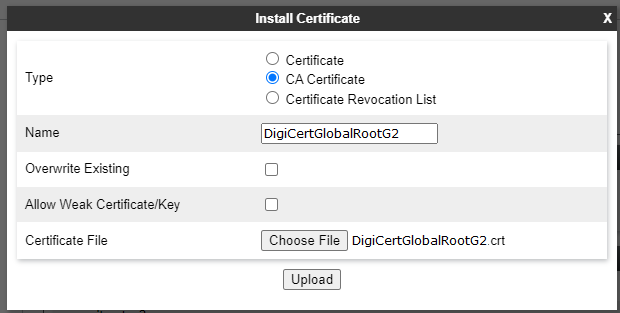
- Repeat the process for the MS Teams root certificate. For our example, this is the DigiCertGlobalRootG2.crt certificate file.
- Click Install and then Finish.
Next steps
-
Proceed to Adding the Identity Certificates to the ASBCE.