

AVAYA DOCUMENTATION CENTER
Find answers to your technical questions and learn how to use our products
Deploying MS Teams Direct Routing with IP Office
Manually Adding MS Teams+IP Office Users
The process below describes the steps for adding a MS Teams+IP Office user manually.
-
If configured to only allow automatic updates through Azure Active Directory synchronization, IP Office grays out the MS Teams URI field.
- Using IP Office Manager or IP Office Web Manager, access the IP Office system configuration.
- Configure the user as required for their IP Office operation. This process only covers the changes required for MS Teams.
- Select User or Call Management | Users.
- Add a new user or select the existing user you want to edit.
- Select the User tab:
- Select a Profile that supports MS Teams user integration:
ADDITIONAL INFORMATION:
-
On subscription mode systems: The IP Office supports MS Teams+IP Office users using the UC User profile.
-
On PLDS licensed systems: The IP Office supports MS Teams+IP Office users using the Office Worker, Teleworker and Power User profiles.
-
- Select Enable MS Teams Client.
- Select a Profile that supports MS Teams user integration:
- Select the Mobility tab:
ADDITIONAL INFORMATION:
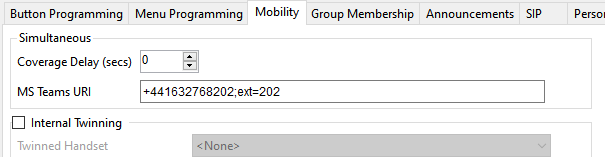
- The Coverage Delay sets a pause, if required, between calls alerting on the user's IP Office extension devices and then also altering on their MS Teams client.
- The user's MS Teams URI should match their Office phone setting as specified in Azure Active Directory (for more information, see Telephone and Extension Numbers):
ADDITIONAL INFORMATION:NumberExample MS Teams URI FormatTelephone Number and Extension
+441632768202;ext=202Telephone Number Only+441632768202Extension Only+202
- Click OK or Save.
- If prompted to allow the system to automatically create a matching extension entry, allow the system to create one matching the type of IP Office extension the user uses.
- If using IP Office Manager, save the configuration back to the IP Office system.