

AVAYA DOCUMENTATION CENTER
Find answers to your technical questions and learn how to use our products
Deploying MS Teams Direct Routing with IP Office
Create a TLS Client Profile for the IP Office
Each connection to the ASBCE requires a TLS client and TLS server entry in the ASBCE configuration. This process creates a TLS client profile for the IP Office connection.
Before you begin
- Select TLS Management and then Client Profiles.
- Click Add.
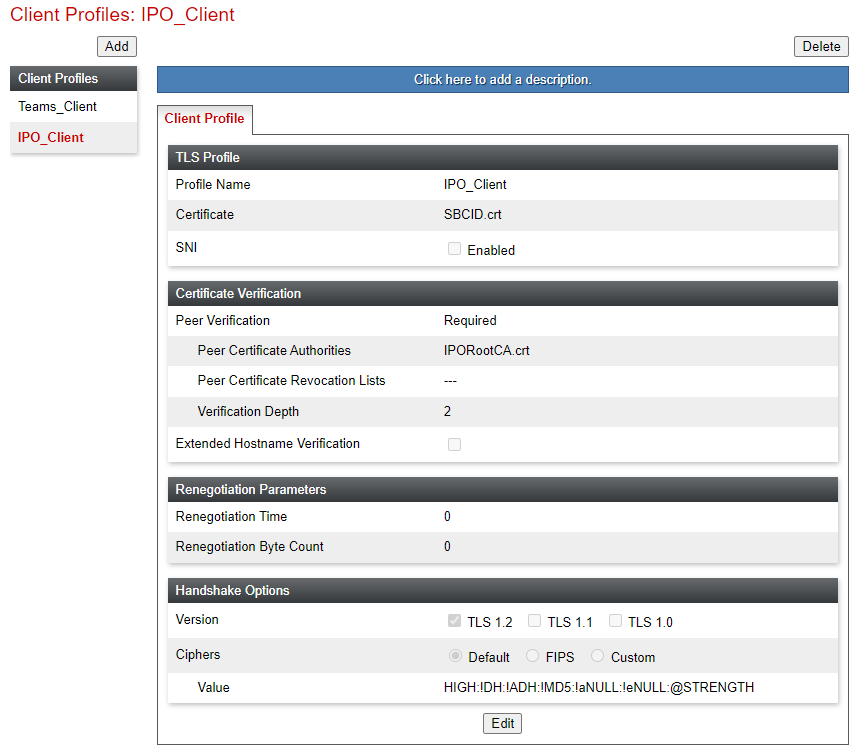
- For the Profile Name, enter a unique descriptive name to help select this profile later in other menus. For example, IPO_Client.
- For the Certificate, select the IP Office identity certificate created for the ASBCE. For this example, IPO_SBCID.pem.
- For Peer Certificate Authorities, select the IP Office system's root certificate. For this example,IPO_RootCA.pem.
- For the Verification Depth:
ADDITIONAL INFORMATION:
-
If the IP Office root certificate is self-signed, set this to 1. That includes subscription systems using Automatic Certificate Management.
-
If the certificate is coming from external verification authority, set this to 2 (length of certificate chain).
-
- Click Next and then Finish.
- The TLS client profile for the IP Office system will look like the following example:
ADDITIONAL INFORMATION:
Next steps
-
Proceed to Create a TLS Client Profile for MS Teams.