

AVAYA DOCUMENTATION CENTER
Find answers to your technical questions and learn how to use our products
Deploying MS Teams Direct Routing with IP Office
Define a SIP Call Routing Profile for MS Teams
The ASBCE requires routing information to route calls to the SIP Servers. The routing profile defines the IP addresses, ports and transport used as the destination addresses for signaling to the servers.
This process creates a routing profile for the connection to MS Teams.
Before you begin
- Select Configuration Profiles and then Routing.
- Enter a Profile Name and click Next.
- Create a route for IP Office extension numbers:
- Click Add.
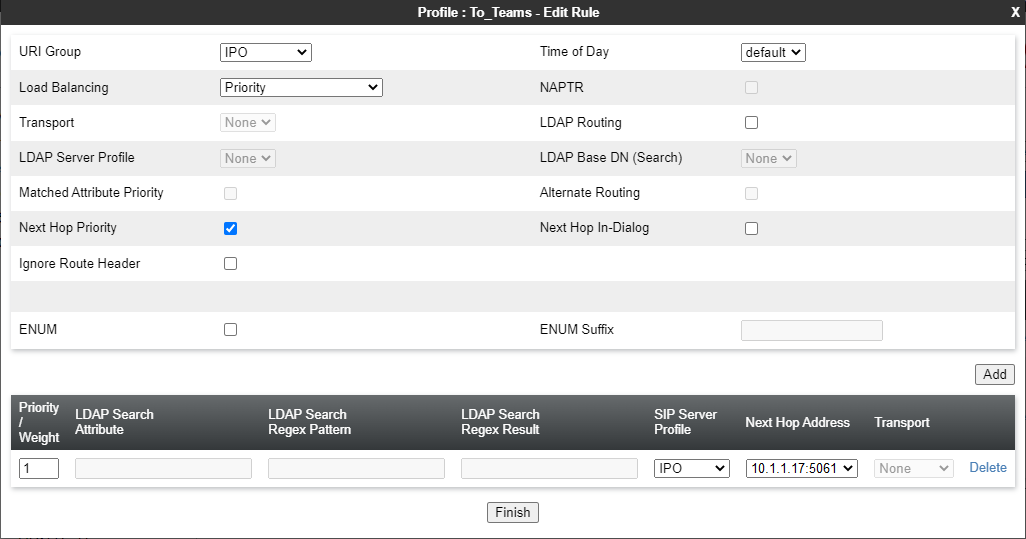
- For the URI Group, select the group created to match IP Office extension numbers.
- In the routing profile settings, click Add and add a call route with the following setting:
- Set the Priority/Weight to 1.
- For the Server Configuration, select the SIP server profile entry created for the IP Office.
- For the Next Hop Address, enter the address for the IP Office and the port to use. For example: 10.1.1.17:5061.
- The settings will look like the following example:
ADDITIONAL INFORMATION:
- Create a route for all other numbers addressed to MS Teams:
- Click Add.
- Enter a Profile Name and click Next.
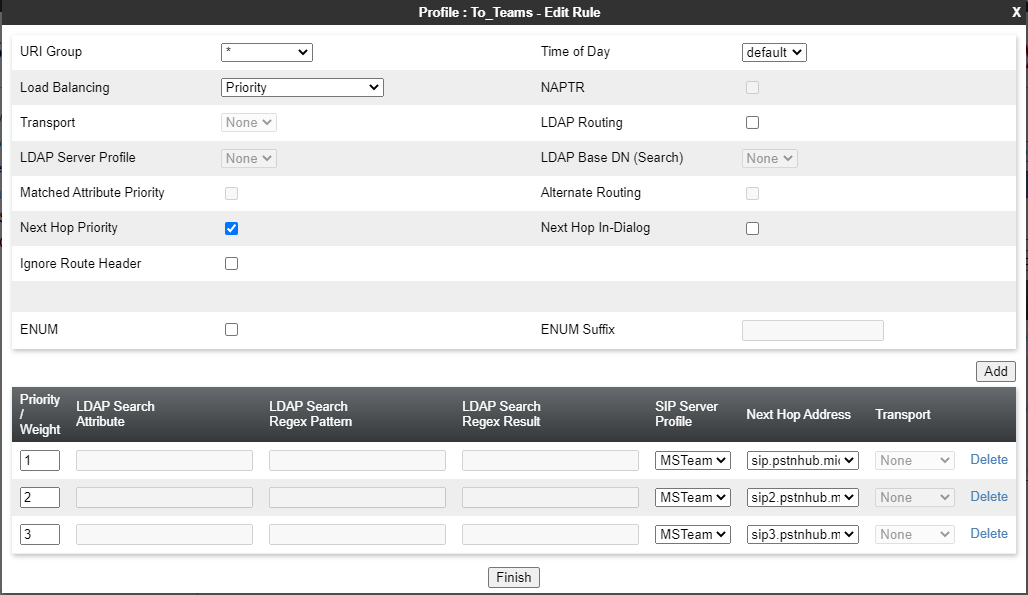
- In the routing profile settings, click Add and add a call route with the following setting:
- Set the Priority/Weight to 2.
- For the Server Configuration, select the SIP server entry created for MS Teams.
- For the Next Hop Address, enter
sip.pstnhub.microsoft.com:5061. - Repeat the above to add
sip2.pstnhub.microsoft.com:5061with priority 2,sip3.pstnhub.microsoft.com:5061with priority 3. - The settings will look like the following example:
ADDITIONAL INFORMATION:
- Click Finish.
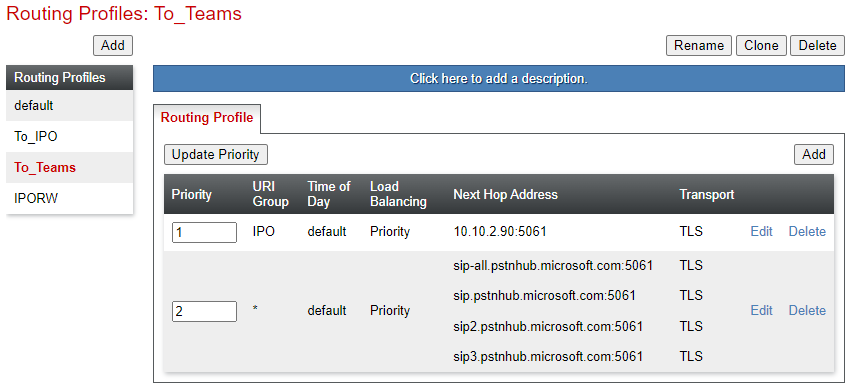
- The final routing profile will look like the following example:
ADDITIONAL INFORMATION:
Next steps
-
Proceed to Configure Topology Hiding for the IP Office.