

AVAYA DOCUMENTATION CENTER
Find answers to your technical questions and learn how to use our products
Implementing and Administering Avaya Aura® Media Server
Managing the High Availability state
If you configured Avaya Aura® MS for High Availability, the system displays the High Availability state of the server on the page. The More Actions drop-down menu contains state transition options, which are available only when High Availability is enabled. The High Availability state can be one of the following values:
|
Action
|
Description
|
|---|---|
|
Active
|
The server has a configured Service IP address and is providing service.
|
|
Standby
|
The server is inactive but remains synchronized with the active server.
|
|
Failed
|
The server has failed. The server will soon restart and transition to a Searching state.
|
|
Locked Active
|
The active High Availability server is Locked Active when you select Local High Availability State Lock on and the server is not shutdown.
|
|
Locked Standby
|
The standby High Availability server is Locked Standby when you select Local High Availability State Lock on and the server is not shutdown.
|
|
Shutdown
|
The server is in a management shutdown state and is not providing service.
|
|
Searching
|
The server tries to determine the state of the other server in the High Availability pair. The server remains in the Searching state for less than a second before transiting to the Active or the Standby state.
|
- On one of the paired High Availability servers, navigate to .
ADDITIONAL INFORMATION:Servers in the High Availability mode display an additional field, High Availability State, on the Element Status page, as shown below:ADDITIONAL INFORMATION:
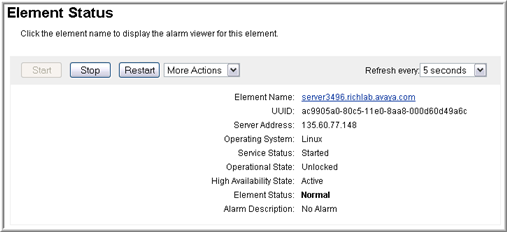
- Use the More Actions drop-down menu to select the required High Availability state. For example, you can choose Failover.
ADDITIONAL INFORMATION:The High Availability states listed on the menu depend upon the current High Availability State, which is shown on the Element Status page.
- Read the warning and then click Confirm to apply the state change.
- On the Element Status page, ensure that the High Availability State field now displays the new state.