

AVAYA DOCUMENTATION CENTER
Find answers to your technical questions and learn how to use our products
Implementing and Administering Avaya Aura® Media Server
Configuring a Secondary server for a cluster
Using EM, perform the following procedure to configure Avaya Aura® MS as the Secondary server in an N+1 Load Sharing cluster:
Before you begin
-
Ensure to replace the default staging certificates. See Replacing Default Staging certificates for the procedure.
-
Configure a separate Avaya Aura® MS as the Primary server with a Replication Account enabled.
-
Obtain the UUID and the IP address of the Primary server.
-
Obtain the user name and the password of the Replication Account of the Primary server.
- To designate a server as Secondary, navigate to .
ADDITIONAL INFORMATION:
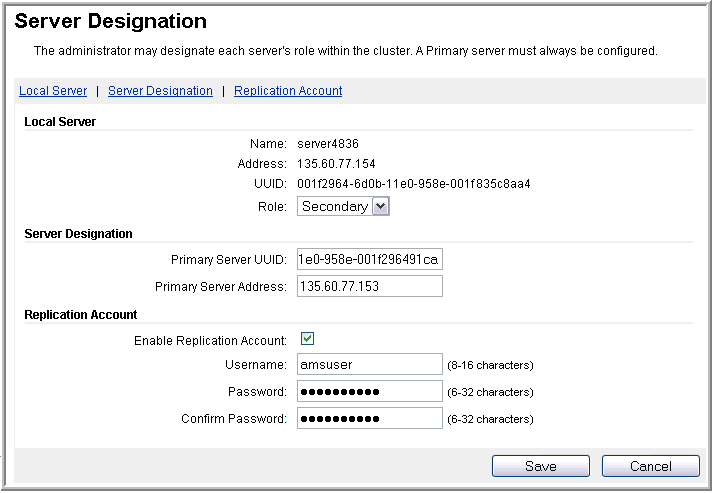
- In the Local Server section, set Role to Secondary.
STEP RESULT:The system updates the page with fields that are specific to the Secondary server configuration.
- Using the EM for the Primary server, copy the UUID of the Primary server.
ADDITIONAL INFORMATION:For more information about copying the UUID, see Obtaining the UUID of a media server.
- Using the EM for the Secondary server, paste the UUID of the Primary server in the Primary Server UUID field.
ADDITIONAL INFORMATION:
-
In the Primary Server Address field, enter the IP address of the Primary server.
-
In the Replication Account section, ensure Enable Replication Account is selected.
-
In the Username, Password, and Confirm Password fields, enter the user name and password for the Replication Account on the Primary server.Important:All servers in the cluster must use the same Replication Account user name and password.
-
- Click Save.
- Click Confirm.
- Restart Avaya Aura® MS for the changes to take effect. Navigate to and click Restart.
- Click Confirm.
Next steps
If you add a media server to a cluster enrolled in System Manager, then you must also enroll the new media server cluster node in System Manager.