

AVAYA DOCUMENTATION CENTER
Find answers to your technical questions and learn how to use our products
Using IP Office SoftConsole
Working with BLF groups
Busy Lamp Field (BLF) icons provide user status and speed dials at a glance. You can add icons for other numbers, which act as speed dials. You can also group BLF icons to appear on different named tabs.
- Click
 Preferences.
 - Select BLF groups.
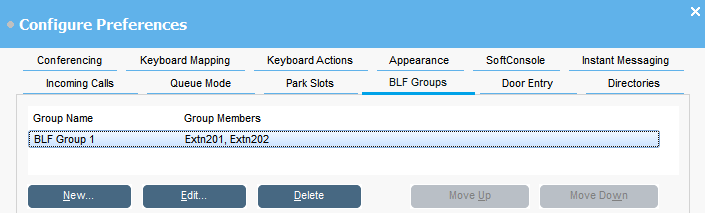
STEP RESULT:The menu displays the name of each group and the members within the group.
- To create a new BLF group:
- Click New.
ADDITIONAL INFORMATION:You can also right-click on a blank area of the BLF panel and then select .
- Enter a unique name in BLF Group Name.
- Select the required members from the Members not in BLF Group list.
ADDITIONAL INFORMATION:You can press Ctrl on your keyboard to select multiple members at a time.
- Click Add to add the selected members.
- Click OK to save your change.
STEP RESULT:The new BLF group appears at the end of the list. - Click New.
- To edit the selected BLF group:
- Click Edit.
- Add or remove group members as required.
- Click OK to save your change.
- To delete the selected BLF group, click Delete.
- To change the position of BLF groups in the list:
- Select the group you want to move.
- Click Move Up and Move Down as required.