AVAYA DOCUMENTATION CENTER
Find answers to your technical questions and learn how to use our products
Using Avaya Cloud Office Mobile App
Calls and telephony features
Important:
This article is based on the Android version of Avaya Cloud Office Mobile App. The navigation and user interface elements may differ for iOS users.
In Avaya Cloud Office Mobile App, you can call your contacts within or outside your organization using the phone number assigned to your account. If your administrator permits, you can also call international numbers.
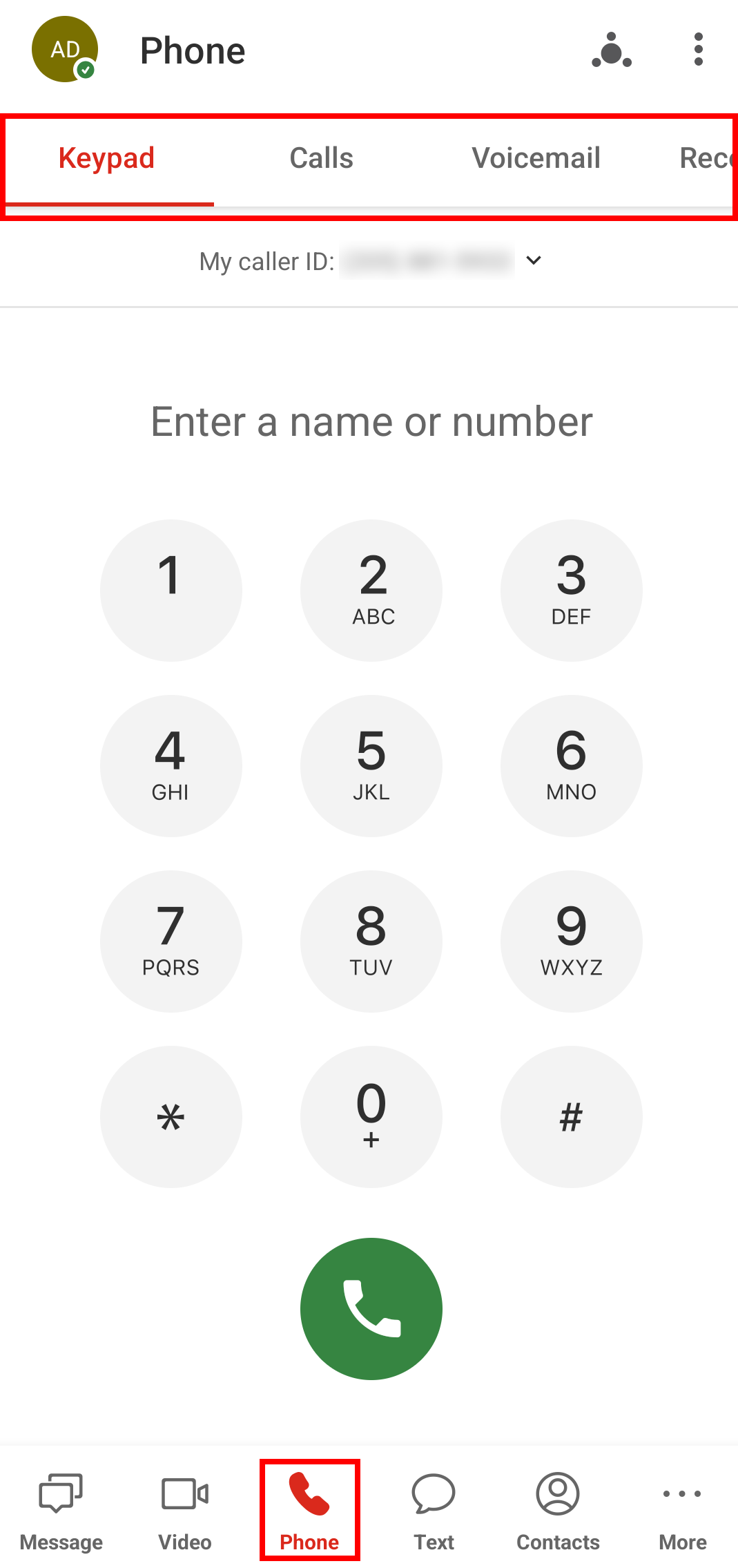
You can initiate calls using the phone icons, which are contextually placed throughout the application. For example, you can start calls from conversations on the Message tab or from text message threads on the Text tab. You can also browse your contacts on the Contacts tab to start calls. However, Avaya Cloud Office Mobile App includes the Phone tab for managing all your call-related activities. The Phone tab is located on the bottom menu bar and includes the following four subtabs:
Keypad: To make calls and temporarily change your caller ID.
Calls: To view your call history.
Voicemail: To listen to and manage your voicemails.
Recordings: To listen to and manage your recorded calls.
You can swipe left and right or tap subtab headers to switch between subtabs.
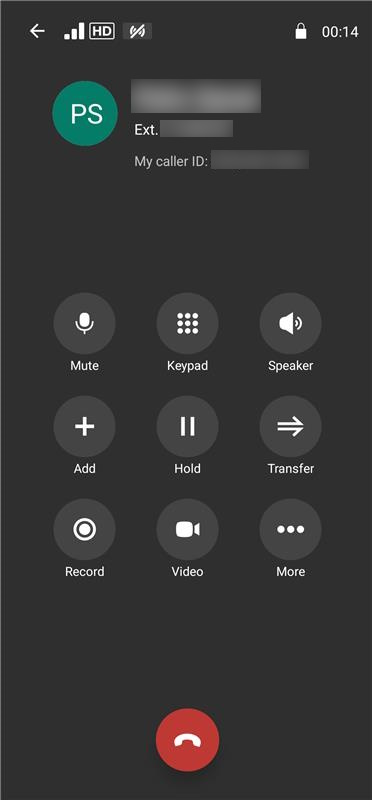
You can also manage your ongoing calls with features built into Avaya Cloud Office Mobile App. These features enable you to perform the following actions:
Mute your microphone.
Use the keypad.
Activate the speaker of your device.
Add coworkers to switch a call to a conference call.
Put an ongoing call on hold.
Transfer a call to another user.
Record an active call.
Switch to a video call.
Share your screen.
Continue the call through your carrier.
Park the call.
Flip the call to a different device.
Activate the end-to-end encryption.