

AVAYA DOCUMENTATION CENTER
Find answers to your technical questions and learn how to use our products
Using Avaya Cloud Office Mobile App
Messaging and conversations
Important:
This article is based on the Android version of Avaya Cloud Office Mobile App. The navigation and user interface elements may differ for iOS users.
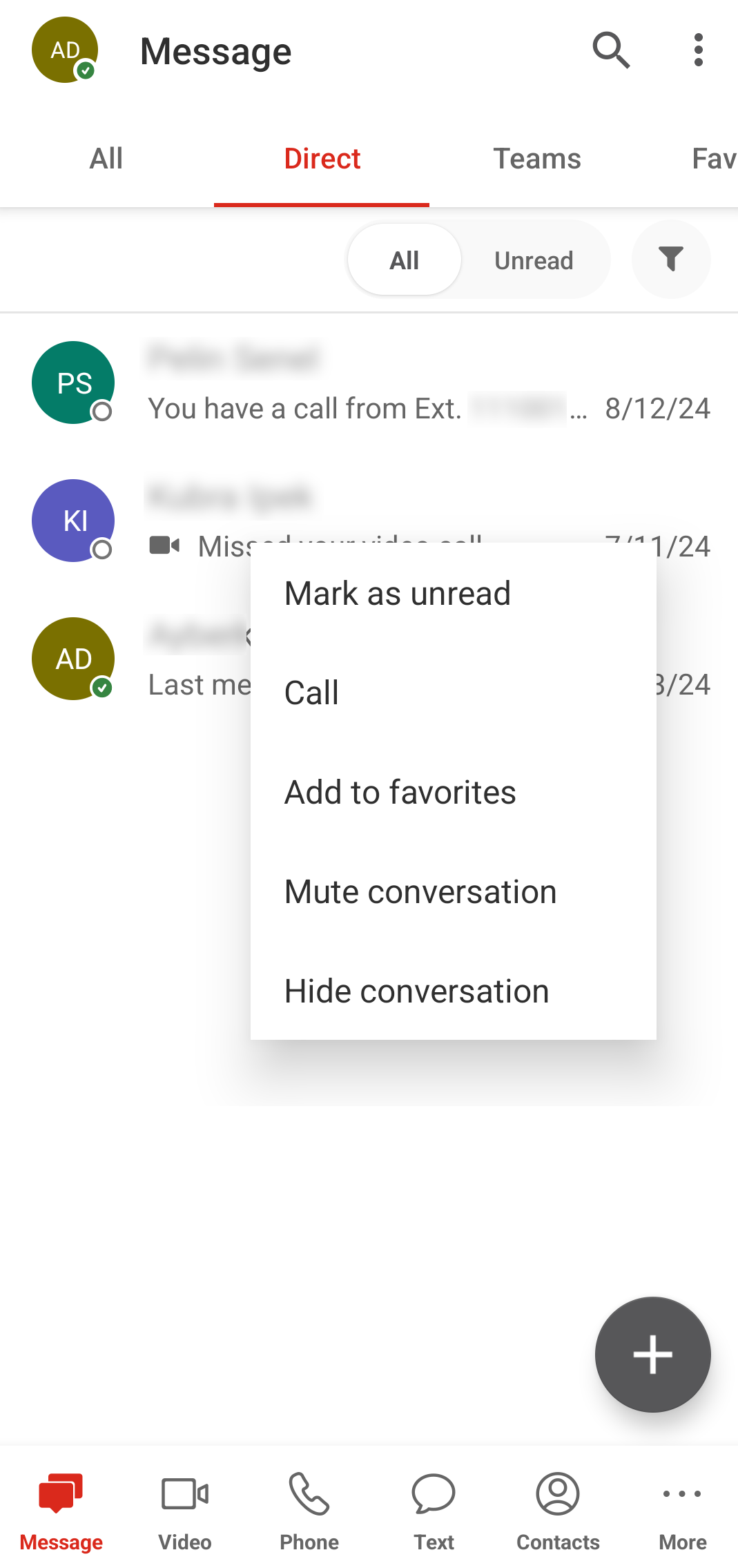
With Avaya Cloud Office Mobile App, you can send messages to your contacts for private direct conversations or participate in team discussions. To access the messaging page, tap the Message tab in the bottom menu bar. This tab displays all your active conversations and is organized into the following four subtabs for basic filtering of your conversations:
All: Displays all the conversations in one space.
Direct: Displays the one-on-one and group conversations.
Teams: Displays the team conversations in which you are a member.
Favorites: Displays the conversations you mark as favorites.
You can switch between these subtabs by swiping left or right or tapping a subtab. The plus icon in bottom-right corner is available across all subtabs and enables you to create new teams and start new conversations.
Conversation features
When you tap and hold a conversation, Avaya Cloud Office Mobile App displays a context menu with the following options:
Mark as unread
Add to favorites
Mute conversation
Hide conversation
If the conversation is a one-on-one direct conversation, the additional option of Call is also displayed on the context menu.
You can open active conversations by tapping them. In this space, you can send messages with emojis, share files, and create tasks, events, or notes for your coworkers. This space also acts as your chat history.
When you tap  at the top-right corner, Avaya Cloud Office Mobile App displays the noteworthy items shared on that particular conversation, such as the following:
Files
Pinned messages
Tasks
Events
Notes
Links
Tapping the conversation banner at the top of the conversation page displays the conversation details. From here, you can start a video call, start a voice call or add more participants to the conversation.