

AVAYA DOCUMENTATION CENTER
Find answers to your technical questions and learn how to use our products
Using Avaya Device Enrollment Services to Manage Endpoints
Searching for device information
About this task
Use the advanced search to view detailed device information, and search for a single device or a few devices.
Procedure
- At the top right corner, click
 .
. - Optional To add another search option, do the following:
- Click +.
- Select AND or OR from the list.
- Repeat steps 4 to 6 to define the search criteria for the new line.
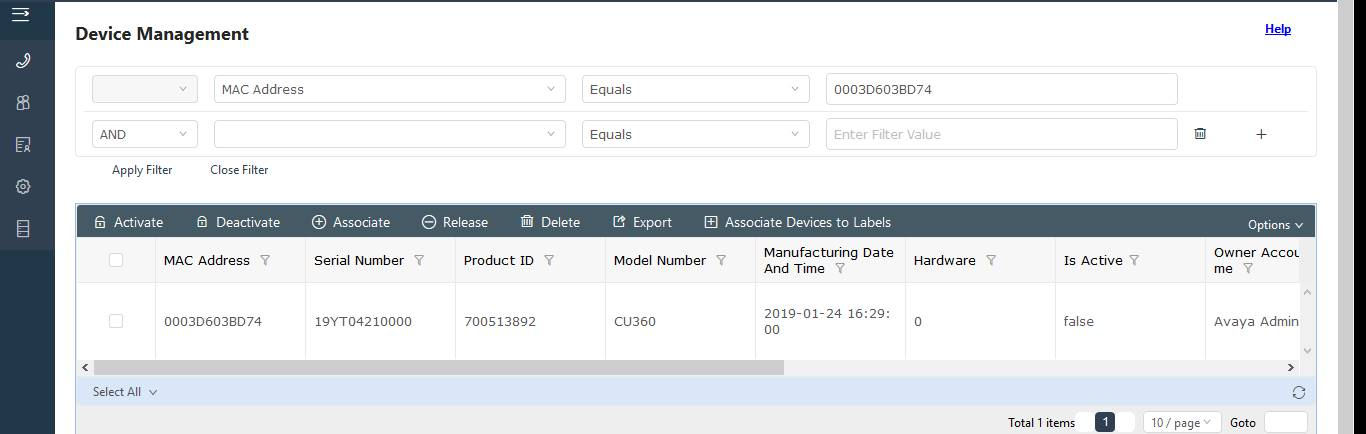
- Optional To delete a search condition, click
 .
.
This button is available only when you add multiple search conditions.