

Resetting a server's security settings

Last Updated : Mar 01, 2024 |

This process can be used if none of the existing passwords are known. This is a two part process:

  1. Reset the Linux root password through the command line.

  2. Erase the existing IP Office security settings from the command line.

  3. Set new IP Office passwords when prompted at first login.

Procedure

  1. Attach a monitor and keyboard to the IP Office system.
  2. Reboot the system and at the start of the boot process, press any key to display the grub menu.
  3. Select the CentOS Linux line and press e.
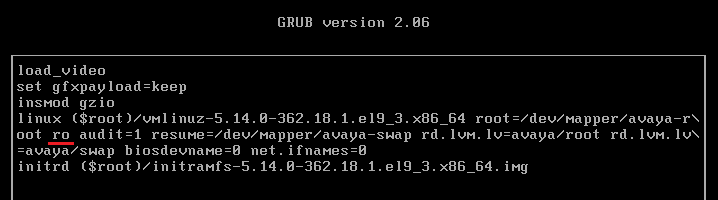


  4. Scroll down to the line starting linux.
  5. Replace the ro argument with rw init=/sysroot/bin/sh
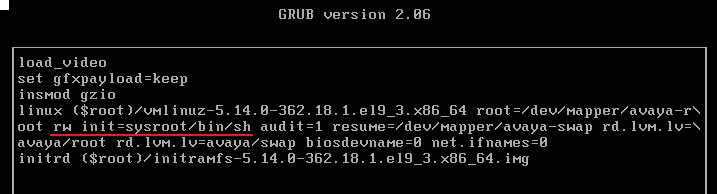


  6. Press Ctrl-X to restart the boot process with the new setting.
  7. Once the boot up has completed, enter the following commands:
    1. Enter chroot /sysroot/.
    2. Enter passwd.
    3. Enter and confirm a new password for the Linux root user.
    4. Enter exit.
    5. Enter reboot.
  8. Log in as root using the new password.
  9. Reset the security settings by entering /usr/bin/dbgclient erasesecurity. This resets the IP Office security and Administrator passwords to the same defaults as used for a new install.
  10. Login to IP Office Manager or IP Office Web Manager using the default Administrator password. When prompted, change the IP Office passwords.