AVAYA DOCUMENTATION CENTER
Find answers to your technical questions and learn how to use our products
Deploying IP Office Server Edition and Application Servers
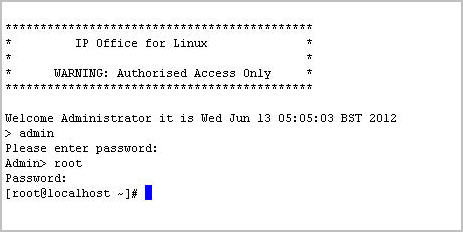
Logging in as a root user
Occasionally it may be necessary to login as the Linux root user.
Before you begin
Download and install an SSH secure shell application.
About this task
To login as a root user using SSH Secure Shell.
Only use this process when instructed to do so by Avaya.
Logging in as the root user is only supported when connected directly to the server (or the console on virtual servers).
Procedure
- Type the root password. The default password is Administrator
The system displays the root user prompt. For example, root@<name of the server>