

AVAYA 문서 센터
기술적 질문에 대한 답변을 찾고 제품 사용 방법을 알아보세요.
Using Avaya Workspaces for Avaya Experience Platform™ Public Cloud
Agent dashboard
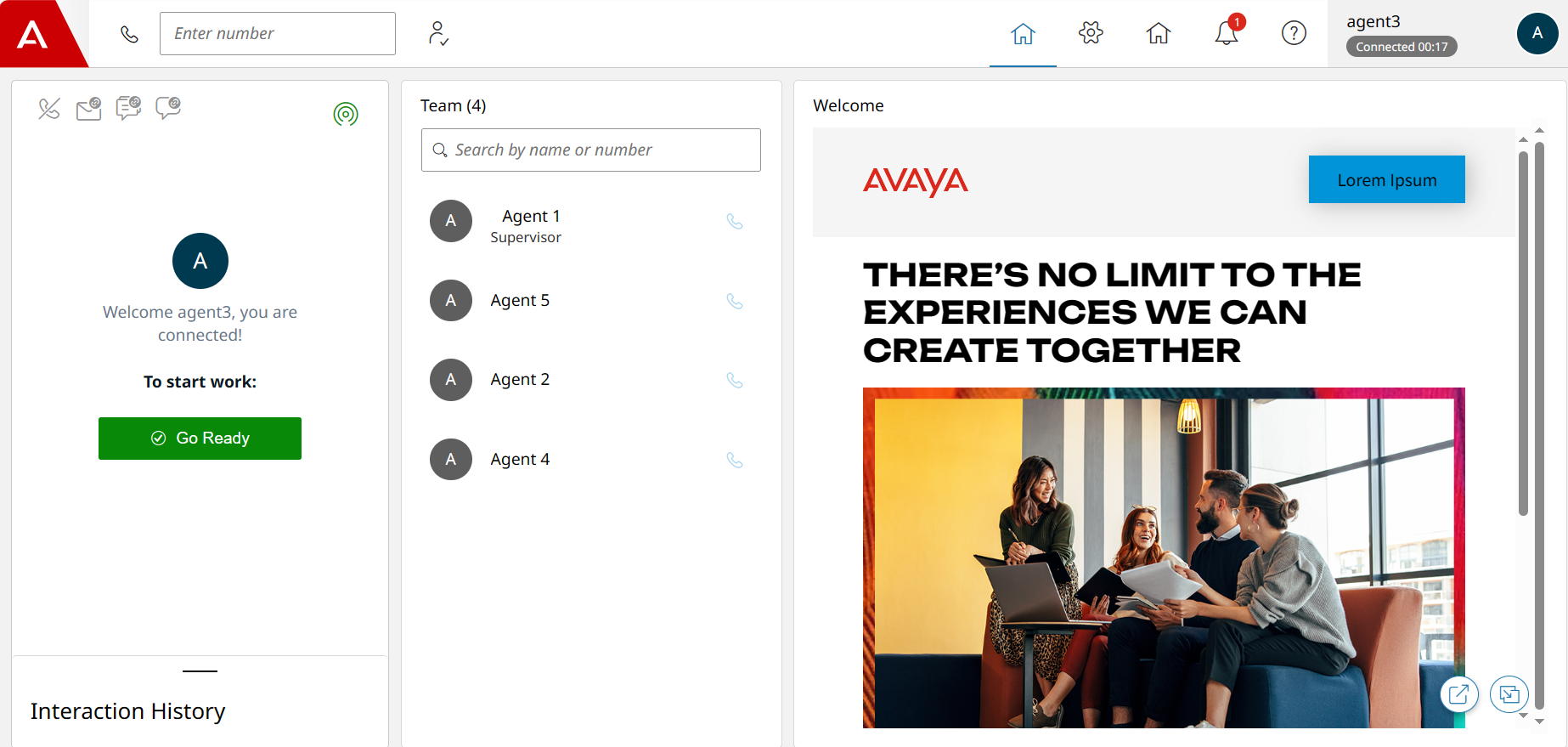
The agent dashboard has an intuitive layout providing simultaneous contact channels, such as chat, email, messaging, and voice.
Top toolbar
The top toolbar provides options to search agents by name or number, quickly create required emails, make internal extension calls, view settings and notifications, change agent states, and access the address book.
The top toolbar also consists of an agent state summary, which displays the agent ID, the current state of the agent, and the channels available for interactions. The agent state summary also includes the Time in State timer when enabled.
Interaction area
The interaction area displays all incoming interactions for the agent on any channel as a Work Card. The interaction cards are queued for the agent at any time. When you click an interaction, the interaction widget displays the interaction details.
An account administrator configures start work options in Application Center Administration. Based on the configuration, you can view the following buttons in the interaction area:
Go Ready
Go Not Ready
Start Work
For more information about configuring start work options, see UX profile field descriptions.
Interaction History widget
The Interaction History widget displays all the interactions that the agent addresses.
You can also view the interaction logs. Interaction logs display the last 15 interactions, which include incoming, outgoing, and missed interactions. Avaya Workspaces clears these logs when the agent logs out.
The interaction log displays the forwarded email list with the Forward Email icon.
Welcome widget
The Welcome widget displays the web page that the account administrator selects in Application Center Administration. The Welcome page does not support the X-Frame-Options: deny HTML tag.
Note:
When you click any action or control buttons in Avaya Workspaces, a spinning action shows on the icon while the action occurs at the back end. The spinning remains until the action is complete or an error occurs. The visual representation of the button prevents you from subsequent clicks.
Note:
If you open the agent dashboard in another browser or tab, the session in the original browser or tab will end.