AVAYA DOCUMENTATION CENTER
Find answers to your technical questions and learn how to use our products
Installing the Avaya Solutions Platform 130 Series
Adding the CA root certificate to Chrome or Microsoft Edge
Use this procedure to install on every client PC the CA root certificate provided by an organizational or external CA.
In this procedure the Avaya Aura® System Manager root certificate is used. Customers using an external CA or a Microsoft CA can skip steps 1 through 5 and proceed with the root certificate installation.
Note:
Certificates signed by a trusted, reputable Certificate Authority may not require installing root certificate on every client (PC) web browser. Consult with CA vendor.
For browsers not listed in this section, refer to the browser vendor documentation to import CRT certificates.
Users (Client PC) with other OS apart from Windows such as Mac OS, RedHat, or CentOS, should refer to each vendor OS documentation to properly install CA root certificates.
Before you begin
Customers using an External CA or Microsoft CA, should have by now the root certificate provided by the CA in CRT format.
- Open Microsoft Edge or Chrome and access Avaya Aura® System Manager.
- Login with administrative credentials. For example, admin.
- Navigate to .
- Under CA Functions, select CA Structure & CRLs.
- Select Download binary/to IE.
ADDITIONAL INFORMATION:

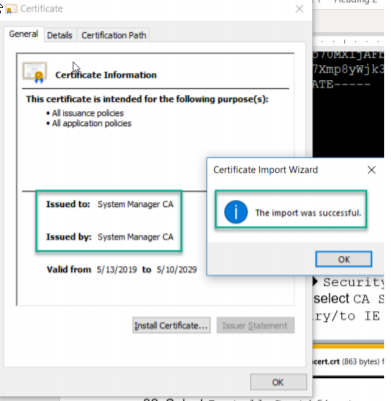
- Select Open.
- Select Install Certificate.
- Select Local Machine.
- Select Next.
- Select Place all certificates in the following store and click Browse.
- Select Trusted Root Certification Authorities and click OK.
- Select Next.
- Select Finish.
ADDITIONAL INFORMATION: