

AVAYA DOCUMENTATION CENTER
Find answers to your technical questions and learn how to use our products
Installing the Avaya Solutions Platform 130 Series
Replacing SSL certificates in Cockpit with a CA signed certificate
Before you begin
-
Complete the steps in Creating the Certificate configuration file for KVM on RHEL 9.6 host, Generating the certificate signing request in KVM on RHEL 9.6, and Signing the Certificate Signing Request (CSR) by an Organizational CA if using Avaya Aura® System Manager.
-
Customers using an external CA or any other organizational CA such as Microsoft CA should have by now the signed certificate in a CERT format and renamed to match the KVM on RHEL 9.6 hostname e.g. asp130-r660xs-RHEL96.acp.avaya.com.cert and CA root certificate.
-
The .cert file should contain two OpenSSL style PEM blocks. First one BEGIN CERTIFICATE block for the server certificate and appended by the intermediate certificate chain authority.Example:
-----BEGIN CERTIFICATE-----
 MIIDUzCCAjugAwIBAgIJAPXW+CuNYS6QMA0GCSqGSIb3DQEBCwUAMD8xKTAnBgNV
 BAoMIGI0OGE2NGNkNmMwNTQ1YThhZTgxOTEzZDE5YmJjMmRjMRIwEAYDVQQDDAls
 ...
 -----END CERTIFICATE-----
 -----BEGIN CERTIFICATE-----
 MIIDUzCCAjugAwIBAgIJAPXW+CuNYS6QMA0GCSqGSIb3DQEBCwUAMD8xKTAnBgNV
 BAoMIGI0OGE2NGNkNmMwNTQ1YThhZTgxOTEzZDE5YmJjMmRjMRIwEAYDVQQDDAls
 ...
 -----END CERTIFICATE-----
Note:
Desirably, the CA ROOT certificate should be in a pem format. However, certificates can be converted by leveraging openssl once they get transferred to the KVM on RHEL 9.6 host.
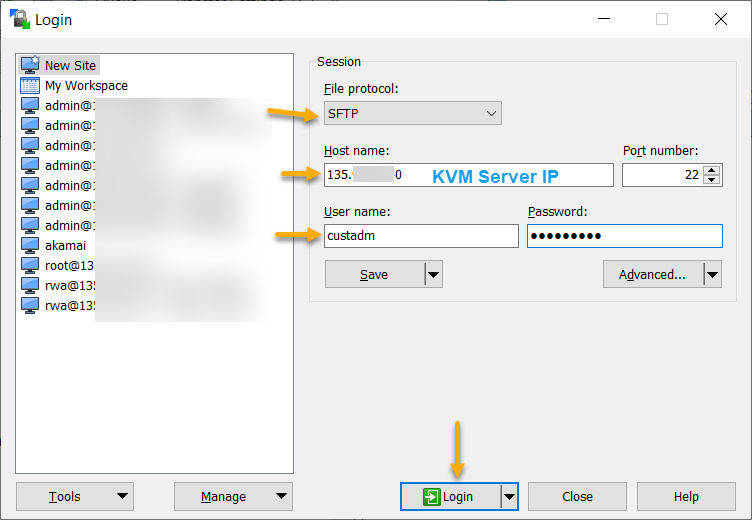
- Open a WinSCP session using the custadm credentials to the KVM on RHEL 9.6 host selected in the Creating the Certificate configuration file for KVM on RHEL 9.6 host procedure.
ADDITIONAL INFORMATION:
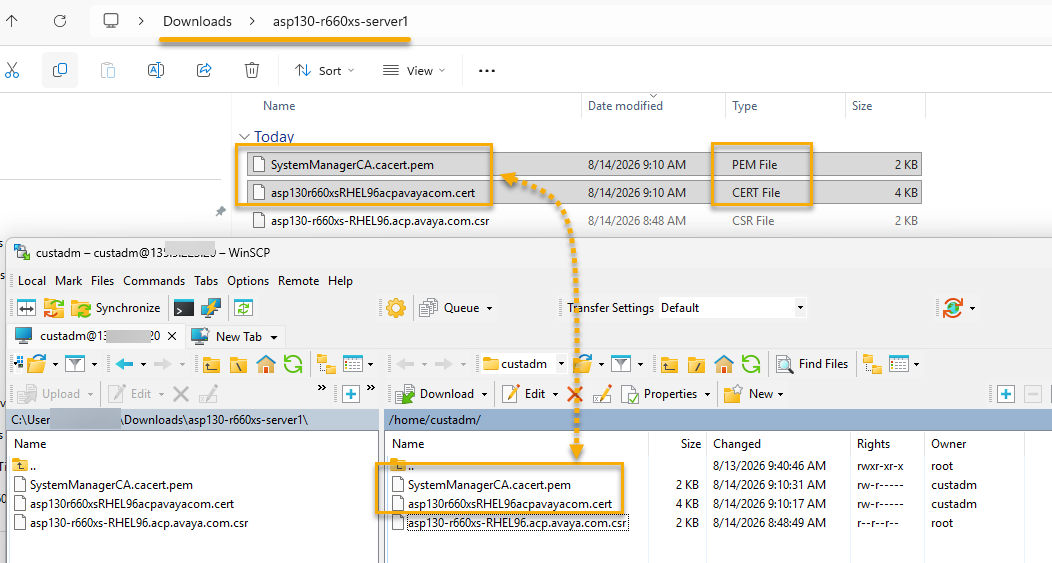
- Transfer the returned signed certificate by the Certificate Authority (CA) with cert extension to the custadm home directory.
ADDITIONAL INFORMATION:Note:In this example, the asp130r660xs.acp.avaya.com.cert certificate has been signed and generated by Avaya Aura® System Manager. When using an external CA such as: VeriSign, DigiCert, Symantec, etc. ensure to rename the generated signed certificate with the corresponding name and format: <HOSTNAME>.cert.
- Transfer the Root CA certificate provided by the Certificate Authority (CA) to the custadm home directory.
ADDITIONAL INFORMATION:In the following example, the Root CA certificate downloaded from Avaya Aura® System Manager is used.
- Log in to the corresponding KVM on RHEL 9.6 host using a Secure Shell (SSH) client such as Putty (not provided by Avaya).
- Authenticate using the existing custadm credentials.
- Run the following commands:
sudo cp <HOSTNAME>.cert /etc/cockpit/ws-certs.d/ [sudo] password for custadm:ADDITIONAL INFORMATION:Example:sudo cp asp130r660xs.acp.avaya.com.cert /etc/cockpit/ws-certs.d/cd /etc/cockpit/ws-certs.d/ls -lrt
ADDITIONAL INFORMATION:Note:At this point, it is expected to have a key file and a CA signed certificate under the /etc/cockpit/ws-certs.d/ directory.Note:If there is a user generated self-signed certificate and a key present as displayed in the example below, these must be renamed prior to restarting cockpit services. System auto-generated certificates and key do not require renaming (0-self-signed.key, 0-self-signed.cert, 0-self-signed-ca.pem).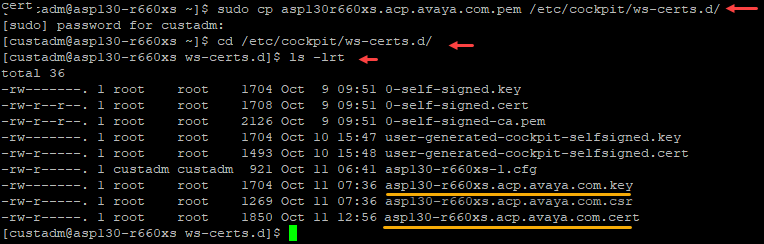
- Following steps are required only if user has generated self-signed certificates apart from the ones that comes with the system by default.
sudo mv <user-generated-self-signed>.cert <user-generated-self-signed>.cert.bak [sudo] password for custadm:ADDITIONAL INFORMATION:Example:mv user-generated-cockpit-selfsigned.cert user-generated-cockpit-selfsigned.cert.baksudo mv <user-generated-self-signed>.cert <user-generated-self-signed>.key.bakADDITIONAL INFORMATION:Example:mv user-generated-cockpit-selfsigned.key user-generated-cockpit-selfsigned.key.bakls -lrtADDITIONAL INFORMATION: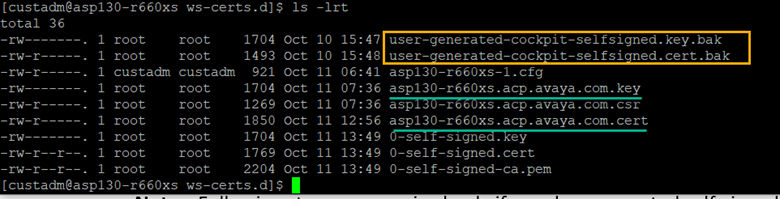
- Restart cockpit services executing the following commands:
sudo systemctl daemon-reload Enter custadm passwordsudo systemctl restart cockpitsudo systemctl status cockpit
ADDITIONAL INFORMATION:Note:Validate cockpit service is active “(running)”. If system failed to start, ensure proper certificate, key file has been transferred with the corresponding format and labels (must match system hostname). If problem persists, reach out to Avaya support.[custadm@asp130-r660xs-RHEL96 ws-certs.d]$ sudo systemctl daemon-reload
[custadm@asp130-r660xs-RHEL96 ws-certs.d]$ sudo systemctl restart cockpit
[custadm@asp130-r660xs-RHEL96 ws-certs.d]$ sudo systemctl status cockpit
● cockpit.service - Cockpit Web Service
Loaded: loaded (/usr/lib/systemd/system/cockpit.service; static)
Active: active (running) since Fri 2026-08-14 15:04:31 MDT; 10s ago
TriggeredBy: ● cockpit.socket
Docs: man:cockpit-ws(8)
Process: 53570 ExecStartPre=/usr/libexec/cockpit-certificate-ensure --for-cockpit-tls (code=exited, status=0/SUCCESS)
Main PID: 53572 (cockpit-tls)
Tasks: 1 (limit: 820707)
Memory: 1.8M
CPU: 149ms
CGroup: /system.slice/cockpit.service
└─53572 /usr/libexec/cockpit-tls
Aug 14 15:04:31 asp130-r660xs-RHEL96.acp.avaya.com systemd[1]: Starting Cockpit Web Service...
Aug 14 15:04:31 asp130-r660xs-RHEL96.acp.avaya.com systemd[1]: Started Cockpit Web Service.
The following example displays a discrepancy between the key file name and current cert filename asp130-r660xs-RHEL96.acp.avaya.com.cert vs asp130r660xsRHEL96acpavayacom.key, which prevents the Cockpit service from starting.[custadm@asp130-r660xs-RHEL96 ws-certs.d]$ systemctl status cockpit
× cockpit.service - Cockpit Web Service
Loaded: loaded (/usr/lib/systemd/system/cockpit.service; static)
Active: failed (Result: exit-code) since Fri 2026-08-14 14:58:03 MDT; 29s ago
Duration: 1h 13min 25.188s
TriggeredBy: ● cockpit.socket
Docs: man:cockpit-ws(8)
Process: 53479 ExecStartPre=/usr/libexec/cockpit-certificate-ensure --for-cockpit-tls (code=exited, status=1/FAILURE)
CPU: 53ms
Aug 14 14:58:03 asp130-r660xs-RHEL96.acp.avaya.com systemd[1]: Starting Cockpit Web Service...
Aug 14 14:58:03 asp130-r660xs-RHEL96.acp.avaya.com cockpit-certificate-ensure[53479]: cockpit-certificate-ensure: open: /etc/cockpit/ws-certs.d/asp130r660xsRHEL96acpavayacom.key: No such file or directory
Aug 14 14:58:03 asp130-r660xs-RHEL96.acp.avaya.com systemd[1]: cockpit.service: Control process exited, code=exited, status=1/FAILURE
Aug 14 14:58:03 asp130-r660xs-RHEL96.acp.avaya.com systemd[1]: cockpit.service: Failed with result 'exit-code'.
Aug 14 14:58:03 asp130-r660xs-RHEL96.acp.avaya.com systemd[1]: Failed to start Cockpit Web Service.
- Proceed with the following commands to install the CA root certificate in the CA trust store location:
cd /home/custadmls -lrtADDITIONAL INFORMATION:Note:It is expected to have the CA root certificate transferred as described in STEP 3.Example:[custadm@asp130-r660xs-RHEL96 ~]$ ls -lrt
total 12
-r--r--r--. 1 root root 1322 Aug 14 09:48 asp130-r660xs-RHEL96.acp.avaya.com.csr
-rw-r-----. 1 custadm custadm 3382 Aug 14 10:10 asp130r660xsRHEL96acpavayacom.cert
-rw-r-----. 1 custadm custadm 1245 Aug 14 10:10 SystemManagerCA.cacert.pem
- If the Root CA certificate is not in a pem format e.g. crt or other, it must be converted to a pem format prior to continuing. If the certificate has been transferred in the expected format, you may skip to the next step, otherwise use the following commands to convert certificates to PEM:
ADDITIONAL INFORMATION:
-
From CRT to PEM
sudo openssl x509 -inform DER -in <ROOT_CA_Certificate>.crt -out<ROOT_CA_Certificate>.pemExample:sudo openssl x509 -inform DER -in SystemManagerCA.cacert.crt -outSystemManagerCA.cacert.pem -
From DER to PEM
sudo openssl x509 -inform DER -in <ROOT_CA_Certificate>.der -out<ROOT_CA_Certificate>.pemExample:sudo openssl x509 -inform DER -in SystemManagerCA.cacert.der -outSystemManagerCA.cacert.pem
-
sudo cp <ROOT_CA_Certificate>.pem /etc/pki/ca-trust/source/anchors/ADDITIONAL INFORMATION:[sudo] password for custadm:cd /etc/pki/ca-trust/source/anchors/ls -lrtADDITIONAL INFORMATION:[custadm@asp130-r660xs-RHEL96 ~]$ cd /etc/pki/ca-trust/source/anchors/
[custadm@asp130-r660xs-RHEL96 anchors]$ ls -lrt
total 4
-rw-r-----. 1 root root 1245 Aug 14 10:47 SystemManagerCA.cacert.pem
sudo update-ca-trust extractsudo openssl verify <ROOT_CA_Certificate>.pemADDITIONAL INFORMATION:Example:sudo openssl verify SystemManagerCA.cacert.pem[custadm@asp130-r660xs-RHEL96 anchors]$ sudo update-ca-trust extract
[custadm@asp130-r660xs-RHEL96 anchors]$ sudo openssl verify SystemManagerCA.cacert.pem
SystemManagerCA.cacert.pem: OK
- Verify installed SSL certificate in Cockpit:
ADDITIONAL INFORMATION:
-
openssl s_client -connect localhost:9090 -tls1_3 -
openssl s_client -connect localhost:9090 -tls1_2
Example:-----END CERTIFICATE-----
subject=CN=asp130-r660xs-RHEL96.acp.avaya.com, CN=asp130-r660xs-RHEL96, OU=ASP-Engineering, O=Avaya LLC, L=Denver, ST=CO, C=US
issuer=CN=System Manager CA, OU=MGMT, O=AVAYA
---
No client certificate CA names sent
Peer signing digest: SHA256
Peer signature type: RSA-PSS
Server Temp Key: ECDH, prime256v1, 256 bits
---
SSL handshake has read 2818 bytes and written 335 bytes
Verification: OK
---
New, TLSv1.3, Cipher is TLS_AES_256_GCM_SHA384
Server public key is 2048 bit
This TLS version forbids renegotiation.
Compression: NONE
Expansion: NONE
No ALPN negotiated
Early data was not sent
Verify return code: 0 (ok)
---
-