

AVAYA DOCUMENTATION CENTER
Find answers to your technical questions and learn how to use our products
Installing the Avaya Solutions Platform 130 Series
Collecting a KVM on RHEL 9.6 SOS Report from the Cockpit UI
When there is an issue with Avaya Aura® applications, or solution behaviors that require troubleshooting or further investigation by Avaya support teams, it is required to collect the KVM on RHEL SOS report from the host.
- Open a web browser to the Cockpit UI https://server_ip_fqdn:9090/ and log in with the custadm or root credentials.
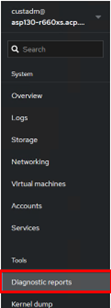
- From the left pane, select Diagnostic reports.
ADDITIONAL INFORMATION:
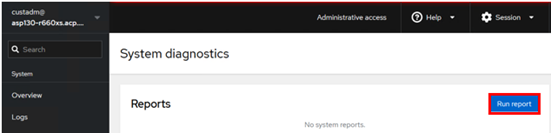
- Click Run report.
ADDITIONAL INFORMATION:
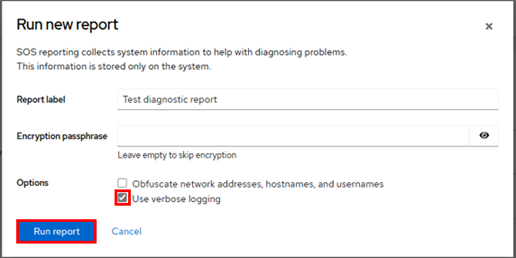
- Enter the report label and in Options, check Use verbose logging. Click Run report.
ADDITIONAL INFORMATION:
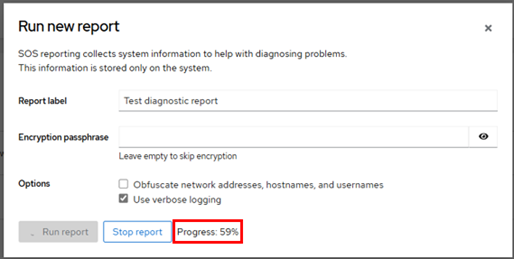
 Progress is displayed at the bottom.
- Once the report completes, click Download to download/save the SOS report files to a local machine.
ADDITIONAL INFORMATION:
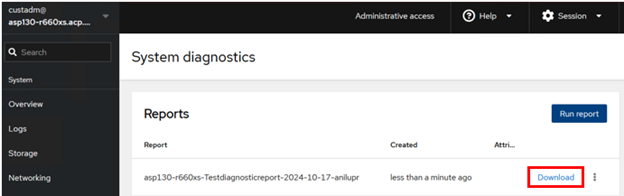 STEP RESULT:A tar.xz file is downloaded.
