

AVAYA DOCUMENTATION CENTER
Find answers to your technical questions and learn how to use our products
Installing the Avaya Solutions Platform 130 Series
Creating the Certificate configuration file for KVM on RHEL 9.6 host
Note:
The following configuration is an example.
- In a text editor of choice (for example Notepad, WordPad, etc.), copy the following content as is:
ADDITIONAL INFORMATION:
[ req ]

 days = 365

 default_md = sha256  ####change to SHA512 or higher/different as required by customer####

 default_bits = 2048      ### change to higher RSA key as required by customer###

 default_keyfile = server-fqdn.company.com.key

 distinguished_name = req_distinguished_name

 encrypt_key = no

 prompt = no

 string_mask = nombstr

 req_extensions = v3_req

 [ v3_req ]

 basicConstraints = CA:FALSE

 keyUsage = digitalSignature, keyEncipherment, dataEncipherment

 extendedKeyUsage = serverAuth, clientAuth

 subjectAltName = DNS:"ServerName.domain.com", DNS:"ServerShortName", IP:"ServerIPAddress"

 [ req_distinguished_name ]

 countryName = "Country (two-letter code alpha-2)"

 stateOrProvinceName = "State (two-letter code)"

 localityName = "City"

 0.organizationName = "Company Name"

 organizationalUnitName = "Company Unit Name"

 commonName = "serverhostname.domain.com"

 emailAddress= “email Address”

 [ alt_names ]

 DNS.1 = "ServerHostname.domain.com"

 DNS.2 = "ServerShortName"

 IP.1 = "ServerIPAddress"
- Edit the content in the following fields as follows:
ADDITIONAL INFORMATION:
-
Days = Enter the number in days for certificate expiry. For example: 365 if certificate should expire in 1 year, 730 for 2 years and so forth.
-
default_keyfile: Update with the KVM on RHEL 9.6 host FQDN. For example: asp130-r660xs.acp.avaya.com.key
-
subjectAltName: Enter the KVM on RHEL 9.6 host FQDN, hostname, IP. For example:
DNS:asp130-r660xs-01.acp.avaya.com, DNS:asp130-r660xs-01, IP:192.168.220.57 -
countryName: Type the two-letter country code without the punctuation. For example,
US. -
stateOrProvinceName: Type the two-letter code of the state or province. For example,
COfor the USA state of Colorado. -
localityName: Type the name of the city. For example,
Denver. -
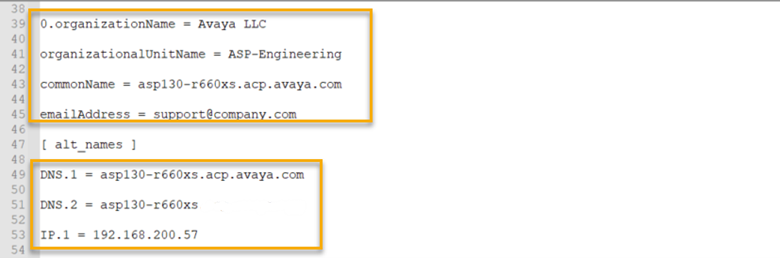
organizationName: Type the name of the organization. For example:
Avaya LLC. -
OrganizationalUnitName: Type the name of the of the department or organization unit making the request. For example:
IT,Engineering, etc. -
commonName: Type the KVM on RHEL 9.6 host Fully Qualified Domain Name. For example:
asp130-r660xs-01.acp.avaya.com -
emailAddress (Optional): Type the email address of the contact person responsible for the ASP 130 infrastructure at the customer site or customer IT department. For example,
support@company.com -
DNS.1: Type the Fully Qualified Domain Name of the KVM on RHEL 9.6 host. For example:
asp130-r660xs-01.acp.avaya.com -
DNS.2: Type the short, hostname for the KVM on RHEL 9.6 host. For example:
asp130-r660xs-01 -
IP.1: Type the KVM on RHEL 9.6 host IP Address. For example:
192.168.200.57.
The following image is an example of an edited configuration file: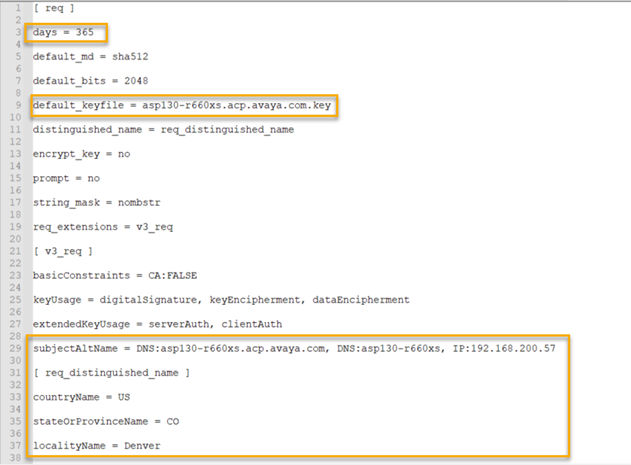
-
- Save the configuration file with a file extension of cfg. For example: asp130-R660xs-1.cfg.
ADDITIONAL INFORMATION:Note:Depending on the used text editor, the configuration file may have to be saved as a text file first, therefore this will be saved with a .txt extension. The newly saved configuration file can then be “renamed” along with changing the extension from .txt to .cfg
 Note:Configuration files are unique per each KVM on RHEL 9.6 host (ASP 130 server). If replacing SSL certificates in multiple hosts, it is strongly recommended to save these using a descriptive name that could easily help the user to differentiate each server configuration file when transferring these, for example: asp130-r660xs-1.cfg for the 1st ASP 130 server, asp130-r660xs-2.cfg for the 2nd ASP 130 server, asp130-KVM on RHEL 9.6-N.cfg, etc. This will help or prevent users from using configuration files and replacing SSL certificates in the erroneous ASP 130 server.
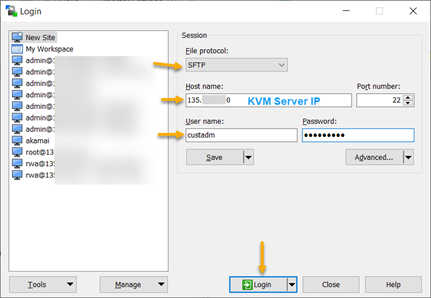
- Starting with the first, desired KVM on RHEL 9.6 host, open a WinSCP session using the root credentials.
ADDITIONAL INFORMATION:
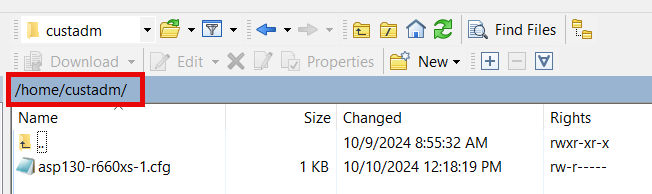
- Using WinSCP transfer the configuration file created in previous steps e.g. asp130-r660xs-1.cfg to the same /home/custadm/ directory.
ADDITIONAL INFORMATION:
- WinSCP session can now be closed.