

AVAYA DOCUMENTATION CENTER
Find answers to your technical questions and learn how to use our products
Using Avaya Vantage
Making a call using a bridged call appearance
When the bridged call appearance feature is enabled for your extension, you can view all your bridged call appearances on the Avaya Vantage™ built-in UC experience. You can select between your extension or a call appearance for outgoing calls. For example, as a secretary, you can choose the bridge call appearance of your boss to make a call on behalf of your boss.
The Call As window on the Avaya Vantage™ built-in UC experience does not show whether the extension for which you have the call appearance is busy. However, your attempt to use the call appearance of that extension to make an outgoing call fails if the extension is in use.
Before you begin
Ensure that:
-
Your administrator configured the bridged call appearance of the other extension on your extension.
-
The required bridged line is idle.
- Tap the Dial pad tab.
- Tap
 next to Dial a number.
ADDITIONAL INFORMATION:
next to Dial a number.
ADDITIONAL INFORMATION: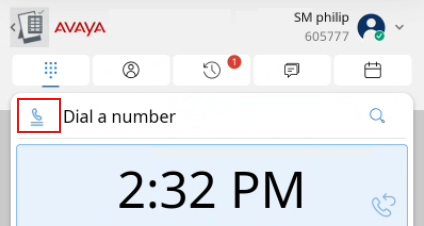
- On the Call As window, select the call appearance of an extension to make a call using it.
ADDITIONAL INFORMATION:By default, your primary extension is selected for outgoing calls.
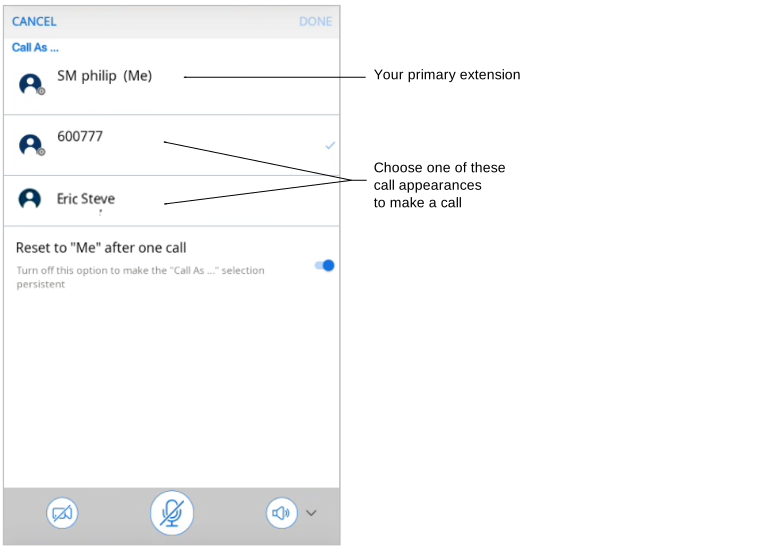 If the Call As window is blank, return to the Dial pad tab and reopen the Call As window to refresh it.
 - To continue using the selected call appearance for more than one call, disable Reset to "Me" after one call.
ADDITIONAL INFORMATION:Keep Reset to "Me" after one call enabled to automatically switch to your extension for outgoing calls after one call.
- Tap Done to save the changes.
STEP RESULT:On the Dial pad screen, the highlighted Bridged Call Appearances icon (
 ) indicates that a call appearance is selected to make calls.
- Dial the number you want to call.
ADDITIONAL INFORMATION:After selecting the call appearance, you can also initiate a call from the Call History or Contacts page. You can also redial a number.STEP RESULT:The built-in UC experience prompts you to confirm whether to make the call on behalf of the selected extension owner.
- Perform one of the following:
-
Tap Continue to proceed with the outgoing call.
-
Tap Change "Call As" to return to the Call As window and choose another call appearance.
-
Tap Cancel to cancel the outgoing call.
-