

AVAYA DOCUMENTATION CENTER
Find answers to your technical questions and learn how to use our products
IP Office Voicemail Pro Example Exercises
Adding a ? Wild Card in a Menu
We want callers to be able to enter the number of the extension to which they want to be transferred themselves. In our example auto-attendant we can do this using another Menu action and some wildcards.
The following is an image of a completed call flow:
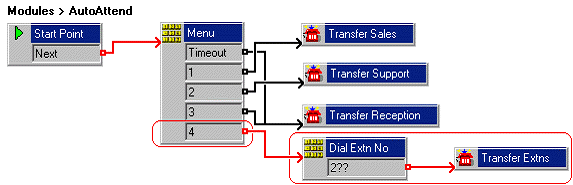
The red arrow or arrows in the call flow are the changes added in this section.
- Do the following to add a new option to the Menu.
- Select the AutoAttend module.
- Open Properties for the
 Menu action.
 - In the Touch Tones tab, select 4 and click OK.
- Do the following to add a new Menu action containing the touch-tone option 2?? (he touch-tone option 2?? needs to be put in a separate Menu action as there are 2 in our first one and that would override 2?? if in the same menu.).
- Click the
 Basic Actions icon and select Menu.
 - Click the Details pane to place the action.
- Open the Properties for the new Menu action.
- In the General tab, change the Token Name to Dial Extn No.
- In the Touch Tones tab, click the Add icon. The Add Touch Tone Sequence window opens.
- In Sequence, enter 2??.
- Click OK twice.
- Click the
- Do the following to add a new Transfer action.
- Click the
 Telephony Actions icon and select
  Transfer.
 - Click the Details pane to place the action.
- Open the Properties for the new Transfer action.
- In the General tab, change the Token Name to Transfer Extn.
- In the Specific tab, click the Browse icon. The Possible entries window opens.
- Select System Defined Variables and "$KEY" Holds the last DTMF series.
- Click OK twice.
- Click the
- Click the
 Connection icon on the toolbar and connect the following:
- Connect 4 to Dial Extn No.
- Connect 2?? to Transfer Extn.
- Connect 4 to
- Click the
 Save & Make Live icon.
 - Do the following to test the new menu item.
- To make a test call to the auto-attendant module, dial *90.
- Dial 4.
- Enter an extension number (other than the one from which you are calling). The call is transferred to the extension.
Next steps
-
We can also use a wildcard to match dialing that does not have any other match. Go to Using a $ Wild Card in a Menu.