

AVAYA DOCUMENTATION CENTER
Find answers to your technical questions and learn how to use our products
IP Office Voicemail Pro Example Exercises
Creating the Module for Reuse
In this example we will create a module that combines the Test Condition and Test User Variable actions previously added directly to the auto-attendant module. The new module will contain a number of Module Return actions. When the module is used in another callflow, these appear as connection results in that callflow.
The following is an image of a completed call flow:
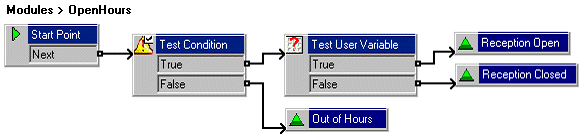
- Add a new Modules called OpenHours.
- Add a Test Condition action.
- Click Conditions Actions, click Test Condition.
- Click the Details pane to place the action.
- Open the Properties for the new Test Condition.
- In the Specific tab, click the list box, select the Attendant condition.
- Click OK.
- Add a Test User Variable action.
- Click Conditions Actions, select
 Test User Variable.
 - Click the Details pane to place the action.
- Open the Properties for the new Test User Variable.
- In the Specific tab, from the This action will return TRUE if the following variable list box, select Reception.
- In matches the value below, type open.
- Click OK.
- Click Conditions Actions, select
- Do the following to add three-module return actions.
- Click
 Basic Actions, click
  Module Return.
 - Click the Details pane to place the action.
- Right-click the new Module Return, select Rename. The New action name window opens. Type Reception Open.
- Click OK.
- Add a Module Return and rename it Reception Closed.
- Add a Module Return and rename it Out of Hours.
- Click
- Do the following to add a connection.
- Click
 Connection.
 - Connect the Test Condition action's True result to the Test User Variable action.
- Connect its False result to the Module Return named Out of Hours.
- Connect the Test User Variable action's true result to the Module Return named Reception Open.
- Connect the Test User Variable action's true result to the Module Return named Reception Open.
- Click
- Click the
 Save & Make Live icon.
Next steps
-
We can now add the module to our existing auto-attendant module. Go to .