

AVAYA DOCUMENTATION CENTER
Find answers to your technical questions and learn how to use our products
IP Office Voicemail Pro Example Exercises
Adding a New Module
This section describes creating a new module and adding a callflow to it.
- Go to , and open Voicemail Pro.
- Right-click
 Modules and select Add.
 - In the Name field, type AutoAttend and click OK. The Start Point is placed in the details pane.
- Do the following to add a menu to Start Point.
- Select the Start Point action.
- Click the
 Basic Actions icon and select
  Menu.
Menu. - Click the Details pane to place the action.
- Do the following to add the menu options 1, 2, and 3.
- Right-click the Menu icon and select Properties.
- In the Touch Tones tab, click 1, 2, and 3, and click OK.
- Right-click the
- Do the following to add the transfer locations of Sales, Support, and Reception groups.
- Click the
 Telephony Actions icon and select
  Transfer.
 - Click the Details pane to place the action.
- Double-click the Transfer action to open the Properties for transfer.
- In the General, tab change the Token Name to Transfer Sales.
- Select the Specific tab.
- Type the destination as Sales (or 301).
- Click OK.
- Click the
- Repeat the steps to create a transfer action for Support (302) and Reception (300).
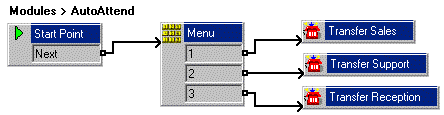
- Do the following to connect the actions.
- Click the
 Connection icon on the toolbar and connect the Start Point Next result and drag to the Menu.
 - Do the following for the Menu options to be connected to the transfer locations:
ADDITIONAL INFORMATION:
-
Connect 1 to Transfer Sales.
-
Connect 2 to Transfer Support.
-
Connect 3 to Transfer Reception.
-
- Click the
- Click the
 Save & Make Live icon.
 - Click Yes to make the changes permanent.
Next steps
-
Having added the new module, you can now add a short code to route internal calls to the module. Go to Creating a Short Code for Internal Calls.