

AVAYA DOCUMENTATION CENTER
Find answers to your technical questions and learn how to use our products
IP Office Voicemail Pro Example Exercises
Adding a Call List Action
You can add a touch tone to the auto-attendant module to allow callers to select the Accounts group through this exercise. From a given list of extensions, the caller can choose to answer the call.
The following is an image of a completed call flow:
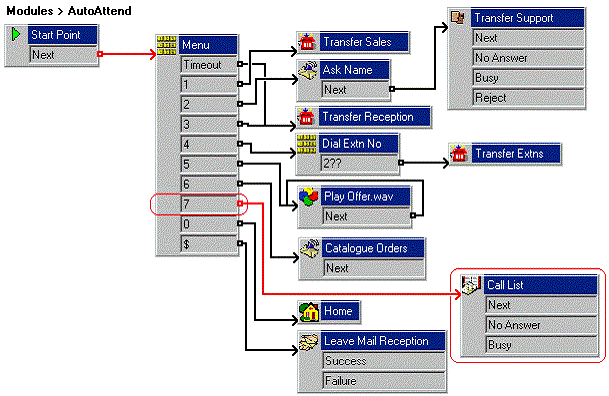
The red arrow or arrows in the call flow are the changes added in this section.
- Do the following to add a new option to the Menu:
- Open Properties for the
 Menu action.
 - In the Touch Tones tab, select 7.
- Click OK.
- Open Properties for the
- Do the following to add a Call List action:
- Click the
 Telephony Actions icon and select
  Call List.
 - Click the Details pane to place the action.
- Open Properties for the new Call List action.
- Click the Specific tab.
- In Transfer to group field, type Accounts.
- Enable the Prompt user with a list of group members option.
- Click OK.
- Click the
- Do the following to add connections:
- Click
 Connection.
 - Set 7 to the Call List action.
- Click
- Select Close and OK.
- Click the
 Save & Make Live icon.
 - The auto-attendant greeting needs to be re-recorded to include the new options. For example: "Welcome to Avaya. Please press 1 for Sales, 2 for Support, 3 for Reception, 4 to dial an extension, 5 to hear the latest sales offer, 6 if you require a catalog, or 7 for Accounts. To listen to the options again, press 0 or hold for further assistance. Thank you"." This can be done using the callflow and short code (*80) created earlier.
- Do the following to test the new announcement:
- To make a test call to the auto-attendant, dial *90.
- Dial 7 to access the Call List. A list of extensions in the Accounts group is played. Our Accounts group contains extensions 207 and 208.