

AVAYA DOCUMENTATION CENTER
Find answers to your technical questions and learn how to use our products
IP Office Voicemail Pro Example Exercises
Creating the Campaign
- Click the Campaign Editor icon.
STEP RESULT:The Campaign Wizard Introduction window opens.
- Select Create a new Campaign.
- Click Next.
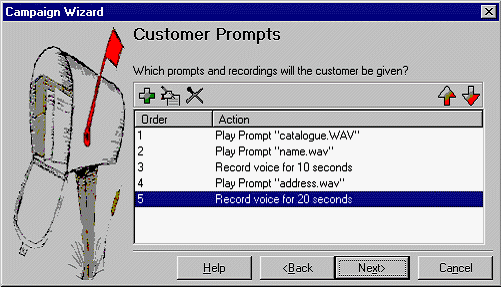
STEP RESULT:The Customer Prompts window opens.
- In Customer Prompts window, do the following:
- Click
 Add.
STEP RESULT:The Please edit the Campaign Action window opens.
Add.
STEP RESULT:The Please edit the Campaign Action window opens. - Select the option Play a prompt to the customer.
STEP RESULT:A .wav file created in the earlier exercises is reuse.
- Click Browse.
STEP RESULT:The Wave Editor window opens.
- In Please select a file or enter a new file name, click
 Open.
Open. - Select catalogue.wav and click Open.
STEP RESULT:You return to the Wave Editor window.
- Click Close.
STEP RESULT:You return to the Please edit the Campaign action, window.
- Click OK.
STEP RESULT:You return to the Customer Prompt window.
- Click Add and in Play a prompt to the customer enter name.wav.
- Click OK.
STEP RESULT:You return to the Customer Prompt window.
- Click Add and select the Allow the customer to input information option.
- In Please enter the maximum recording length, enter 10.
- In Please enter a unique name that will describe the input, enter CustomerName.
ADDITIONAL INFORMATION:Note:When entering a name, ensure that you use no spaces.
- Click OK.
STEP RESULT:You return to the Customer Prompt window.
- Click
- Repeat the procedure to add address.wav, allow 20 seconds recording time, and enter CustomerAddress as the unique name.
ADDITIONAL INFORMATION:
- Click Next.
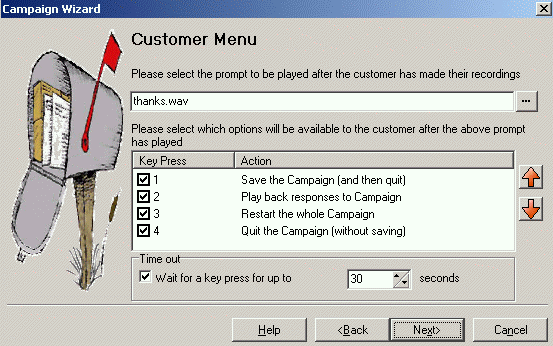
STEP RESULT:The Customer Menu window opens.
- Do the following in the Customer Menu window:
- In Please select the prompt to be played after the customer has made their recordings, use the
 Browse to enter the wav file called thanks.wav.
 - Under Please select which options will be available to the customer after the above prompt has played, select 1, 2, 3, and 4.
ADDITIONAL INFORMATION:Note:Ensure the prompt thanks.wav recording is recorded with selected options.
- Click Browse to open the Wave Editor window and re-record the prompt.
STEP RESULT:Return to the Customer Menu window.
- Click Next.
STEP RESULT:The Campaign Identification window opens.
- In Please select the prompt to be played after the customer has made their recordings, use the
- In Campaign Identification, do the following:
- In Where should this Campaign be parked when information is either left by a customer or collected by an agent?, enter 5000.
- In The name of this Campaign is, enter Sales Catalog.
- Click Next.
STEP RESULT:The A new Campaign called "Sales catalogue" will now be produced window opens.
- Click Finish to produce the campaign.