

AVAYA DOCUMENTATION CENTER
Find answers to your technical questions and learn how to use our products
IP Office Voicemail Pro Example Exercises
Using the Alarm Set Action
Through this exercise, you can learn to add an Alarm Set action to and allow users to set alarm calls on their extensions via voicemail. The Alarm Set action can only be used on internal extensions. Voicemail attempts to present the alarm call every 5 minutes for half an hour until answered.
The following is an image of a completed call flow:
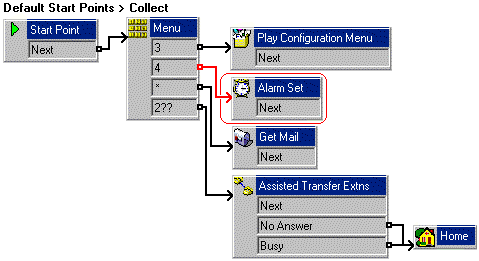
The red arrow or arrows in the call flow are the changes added in this section.
- In , add touch-tone 4 to the Menu action.
- From the Miscellaneous Actions icon, add an Alarm Set action.
- Connect 4 to the Alarm Set action.
- Click the
 Save & Make Live icon.
 - Do the following to test call flow:
- From any extension, dial *17 and press 4.
- Follow the instructions and set an alarm call for 3 minutes after the current time on the voicemail server.
- The extension should ring at the time requested. When you answer, you will hear the message recorded when the alarm was set. End all calls.