

AVAYA DOCUMENTATION CENTER
Find answers to your technical questions and learn how to use our products
IP Office Voicemail Pro Example Exercises
Using a $ Wild Card in a Menu
A $ wildcard will match any dialing by a caller that does not match any of our specified key. In this example, the message is left in the group mailbox used for the receptionist extensions.
The following is an image of a completed call flow:
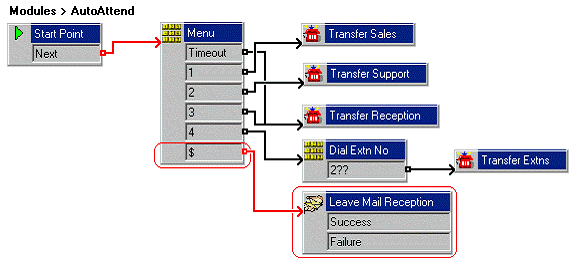
The red arrow or arrows in the call flow are the changes added in this section.
- Do the following to add a new option to the Menu.
- Select the AutoAttend module.
- Open Properties for the
 Menu action.
 - In the Touch Tones tab, click the
 Add icon. The Add Touch Tone Sequence window opens.
 - Enter $ in the Sequence box.
- Click OK twice.
- Do the following to add Leave Mail action.
- Click the
 Mailbox Actions icon and select
  Leave Mail.
 - Click the Details pane to place the action.
- Open the Properties for the new Leave Mail action.
- In the General tab, change the Token Name to Leave Mail Reception.
- In the Specific tab, select Mailbox and type Reception.
- Click the
- Click OK.
- Do the following to add a connection:
- Click the
 Connection and connect $ to Leave Mail Reception.
- Click the
- Click the
 Save & Make Live icon.
 - Make a test call to the auto-attendant module:.
- Dial *90.
- Enter an incorrect number, one that is not in the menu.
- Voicemail waits five seconds for any further digits. After five seconds, it follows the $ result connection. You should hear the prompts to leave a message for the Reception group.