

AVAYA DOCUMENTATION CENTER
Find answers to your technical questions and learn how to use our products
IP Office Voicemail Pro Example Exercises
Using the Campaign Action to Collect Messages
Through this exercise, you can change the call flow for collecting Sales group messages so that users can choose to check the campaign messages.
The following is an image of a completed call flow:
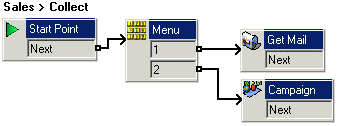
- Record a prompt called sales collect menu.wav.
Record messages as Press 1 for group messages, 2 for campaign messages.
- Under Groups, right-click Sales and select Edit.
- Add Collect to the ticked options and click OK.
- Select the Collect start point now under Sales.
- Add a Menu action and open its properties.
- In the Entry Prompts tab, add sales collect menu.wav.
- In the Touch Tones tab, select 1 and 2.
- Click OK.
- Add a Get Mail action and open its properties.
- In the Specific tab, set the Mailbox to Sales.
- Click OK.
- Add a Campaign action and open its properties.
- In the Specific tab, select the Sales Catalog campaign and Pick up campaign information.
- Click OK.
- Click
 Connection.
- Select Start Point to the Menu action.
- Select 1 to select Get Mail action.
- Select 2 to select Campaign action.
- Click the
 Save & Make Live icon.
 - From any extension, dial *88. Press 2 to collect and process campaign messages.