

AVAYA DOCUMENTATION CENTER
Find answers to your technical questions and learn how to use our products
IP Office Voicemail Pro Example Exercises
Adding a Play Configuration Menu Action
Through this exercise, you can add an action to enable users to configure their user options via voicemail. It is beneficial when users are working remotely.
The following is an image of a completed call flow:
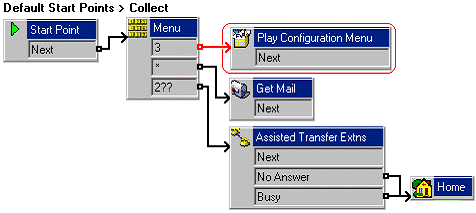
The red arrow or arrows in the call flow are the changes added in this section.
- Within , add touch-tone 3 to the Menu action.
- From
 Configuration Actions, add a
  Play Configuration Menu action and open its properties.
 - Click the
 Save & Make Live icon.
 - Do the following to test call flow:
- From extension 208, dial *17.
- Press 3. The configuration list options are announced.
- Press 5 for Do Not Disturb.
- Press 1 to enable and end the call.
- Dial extension 208 from any other extension. You will hear a busy tone.
- End the call.
- Repeat the steps and press 3 to disable Do Not Disturb.