

AVAYA DOCUMENTATION CENTER
Find answers to your technical questions and learn how to use our products
Administering Avaya Cloud Office Service Web
Configuring call queue notifications
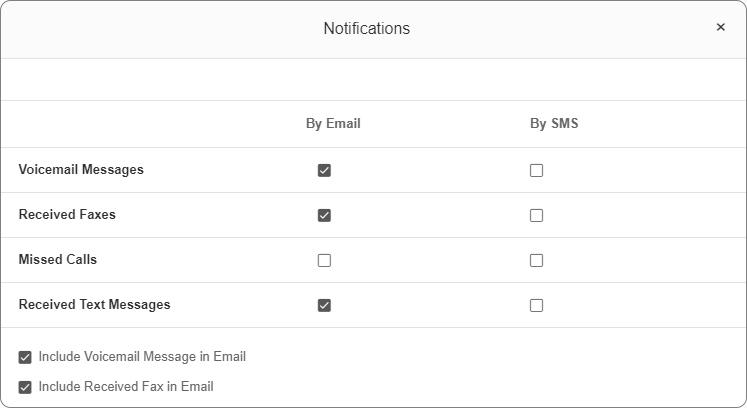
Manage the notifications Avaya Cloud Office™ sends to managers and specified emails. You can select email, SMS, or both for notifications about the following:
-
Voicemail Messages
-
Received Faxes
-
Missed Calls
-
Received Text Messages
- Click .
- Click the call queue to configure.
- Click .
- Under Notifications, click Edit.
- On the Notifications window, select or clear the check boxes as required.
ADDITIONAL INFORMATION:
- Under Send Notifications to, select one of the following:
-
Managers and Specified Emails
-
Specified Emails Only
-
- In the Email field, type the email of the recipient.
- Select the carrier, and type the phone number.
ADDITIONAL INFORMATION:If your carrier is not listed, contact your carrier to learn the email address by which you can receive text messages, and enter it into the Phone Number field.For example, yournumber@yourcarrier.com.
- To add the member to the recipients list, click Add.
- To add more members to the recipients list, repeat steps 7 to 9.
- Click Save.