

AVAYA DOCUMENTATION CENTER
Find answers to your technical questions and learn how to use our products
Administering Avaya Cloud Office Service Web
Managing templates from Admin Portal
As an administrator, you can use templates to simultaneously apply the same settings to multiple users or extensions. Templates provide consistency across the solution in your company and are easy to update to meet your business needs. From Admin Portal, you can create the user settings or call handling rules template types. You can also copy existing templates to create new templates with the same settings.provides you with the following templates:
-
User Settings: To apply the same settings to multiple users.
-
Call Handling: To apply the same call handling settings for users who work the same business hours.
-
Key Templates: To define phone key layouts applied to multiple user devices.
-
Call Queue Settings: To apply the same settings to multiple call queues.
-
Limited Extension: To apply the same settings to multiple limited extensions.
Applying templates can take a couple of minutes. After the process is complete,sends you a notification email.
Adding a permission role template
Create a permission role template to apply the same permission role to multiple users simultaneously. For example, you can use a permission role template to change the permission level of multiple users from Standard International to a higher role.
- Click .
- Click Add User Settings Template.
- On the Add User Settings Template window, in the New Template Name field, type the name for the template.
- Click Save.
STEP RESULT:creates the template and displays the settings menu for it.
- Click User Details.
- In the Roles section, click Edit.
- In the Roles window, select the role.
- Click Done.
- Back in the Roles section, select the Override user settings check box.
- Scroll down and click Save.
Adding a user groups template
Create a user groups template to assign multiple users to the same groups simultaneously. You can assign users to one or multiple user groups. When you create a template for multiple groups and apply it to users, these users become members of multiple user groups.
- Click .
- Click Add User Settings Template.
- On the Add User Settings Template window, in the New Template Name field, type the name for the template.
- Click Save.
STEP RESULT:creates the template and displays the settings menu for it.
- Click User Details.
- In the User Groups section, click Edit.
- On the Edit User's Groups window, select one or multiple user groups.
- Click Done.
- Back in the User Groups section, select the Override user settings check box.
- Scroll down and click Save.
Adding a business hours template
Create a template to apply the same call handling settings for users who work the same business hours. After you apply a business hours template to users,handles incoming calls to these users based on the schedule and call handling option configured in the template. The call handling options you can select from are as follows:
-
Ring my devices
-
Send to voicemail
-
Play an announcement
-
Forward to extension
-
Forward to external number
- Click .
- Click Add User Call Handling Template.
STEP RESULT:displays the Add User Call Handling Template window.
- On the Conditions tab, select the Date and/or Time check box.
- Select one of the following options and configure the period for the template:
-
Weekly Schedule: To define a weekly schedule for the template.
-
Specific Date Range: To define a specific date range for the template.
-
- Click Next.
- On the Call Handling tab, under Select what should happen when incoming calls match the rule, select a call handling option.
- Make any necessary configurations for the selected option, then click Next.
- On the Summary tab, in the New Template Name field, type the name for the template.
- Click Save.
Adding a key template
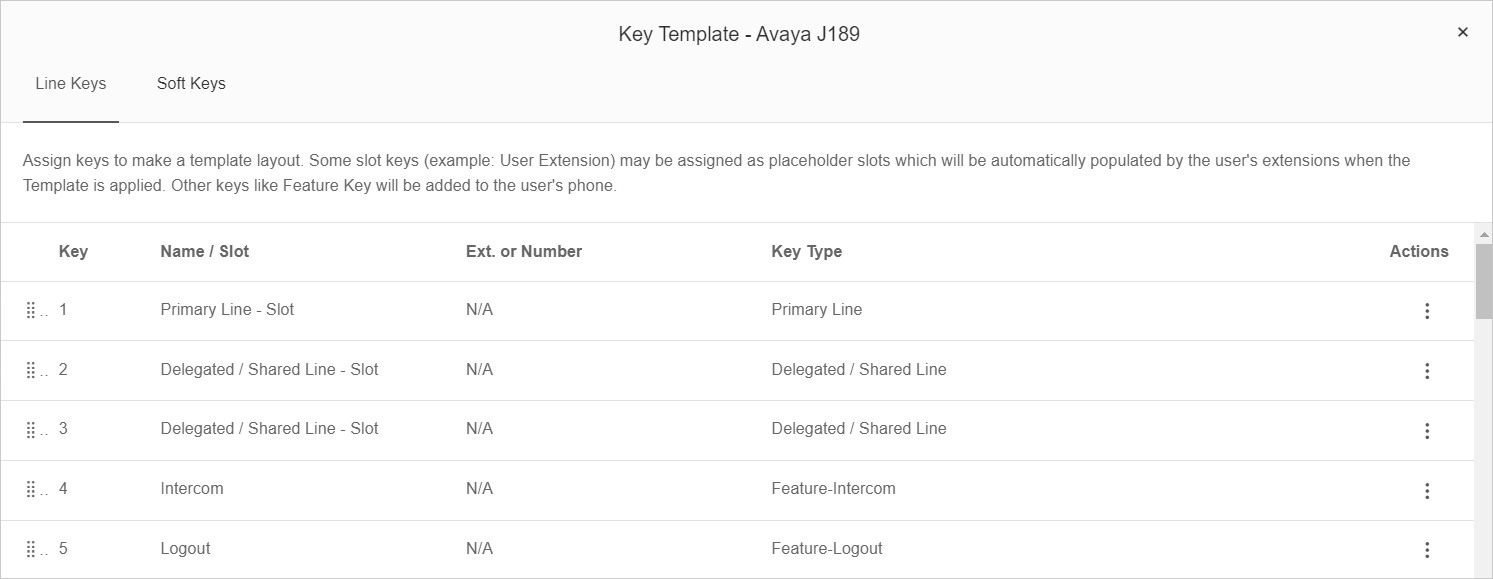
Create a key template to define phone line and soft key layouts applied to multiple user devices. You can assign the following line keys:
-
Primary line slot
-
Delegated or shared line slot
-
Extension slot
-
Speed dial
-
Feature
assigns the slot line keys as placeholder slots that extensions automatically populate when the template is applied. For soft keys, you can assign speed dials and features.
After you create and apply a key template,reboots the user devices to implement the template. If a user has an active call, the device reboots after the call is complete.
- Click .
- Click Add Key Template.
- On the Add Key Template window, in the New Template Name field, type the name for the template.
- From the Device Model list, select the model of user devices to apply the template.
- Click Save.
STEP RESULT:creates the template and displays the settings menu for it.
- Click .
STEP RESULT:displays the Key Template window.
- To assign a line key, on the Line Keys tab, in the key row, click
 and do one of the following:
-
Click Assign Primary Line - Slot.
-
Click Assign Delegated / Shared Line - Slot.
-
Click Assign Extension - Slot.
-
Click Assign Speed Dial, enter the name and number and click Assign.
-
Click Assign Feature, select the required feature and click Assign.
-
- To assign a soft key, on the Soft Keys tab, in the key row, click and do one of the following:
-
Click Assign Speed Dial, enter the name and number and click Assign.
-
Click Assign Feature, select the required feature and click Assign.
-
- Click Done.
ADDITIONAL INFORMATION:
Configuring a template with emergency response location settings
Configure an emergency response location template that you can apply to multiple users. With an emergency response location template, you can override user settings and set an emergency response location for unconfigured devices.
- On the main page, click .
- Click Add User Settings Template.
- In the New Template Name field, type a name for the template.
- Click the newly created template.
- Click Devices.
- Under the Emergency Response Location section, click Edit Location.
- On the Emergency Response Location window, you can do one of the following:
-
Select an organization-designated emergency location from the list.
-
Add a new emergency location.
-
- Click Done.
- Under the Emergency Response Location section, select the Override user settings check box.
- Scroll down and click Save.
Applying a template with emergency response location settings to users
Apply a template with emergency response location settings to change the response location for multiple users.
- On the main page, click .
- In the list, select the check boxes of the users to apply templates.
- On the taskbar, click Apply Template.
- From the list, select the emergency location template.
- Click Apply Template.
- Click Continue.
- In the dialog box, click Continue.
- To notify the affected users by email, select the Notify active users of this change by email check box.
- To send a copy of the notification email to additional recipients, type the email addresses in the field.
- Click Apply Template.
Adding a limited extension template
Create a limited extension template to simultaneously apply the same settings on multiple limited extensions. You can apply a limited extension template only to the enabled limited extensions.
- Click .
- Click Add Limited Extension Settings Template.
- On the Add Limited Extension Settings Template window, in the New Template Name field, type the name for the template.
- Click Save.
STEP RESULT:creates the template and displays the settings menu for it.
- Click Phone.
- In the Company emergency response location section, click Edit Location.
- On the Emergency Response Locations window, select the location and click Done.
- Back in the Company emergency response location section, select the Override Extension Settings check box.
- From the settings menu, click Outbound Caller ID.
- In the Primary Caller ID section, click Edit.
- On the Select Number window, from the list, select the primary number.
ADDITIONAL INFORMATION:You can use the Search bar to find the required number.
- Click Done.
- Back in the Primary Caller ID section, select the Override user settings check box.
- In the Alternate Caller ID section, click Edit.
- On the Select Number window, from the list, select the alternate number.
ADDITIONAL INFORMATION:You can use the Search bar to find the required number.
- Click Done.
- Back in the Alternate Caller ID section, select the Override user settings check box.
- Click Save.
Copying a template
Copy an existing template to create another template with the same settings.
- Click .
ADDITIONAL INFORMATION:Alternatively, you can click .
- Click the subtab for the template type you want to copy.
- Next to the template to copy, click .
- Click Duplicate.
- On the Duplicate Template window, in the New Template Name field, type the name for the new template.
- Click Save.
Applying a template to users
Apply an existing template to multiple users to assign the same settings to these users. You can apply a template to users that are not members of a call queue group. When you apply a template to users, you can notify the users by sending an automatic email to these users.
The process of applying a template takes several minutes. After the process is complete,sends you an email.
- Click .
- Next to the template to apply, click .
- Click Apply.
- On the Apply Template window, from the list, select the users to apply the template.
STEP RESULT:You can use the Search bar to find the users.
- Click Apply.
- On the Apply Template Confirmation window, click Continue.
- To send a notification email to the effected users, on the Apply Template Notification window, select the check box.
ADDITIONAL INFORMATION:When you finish applying a template, additional recipients you add also receive an automatic email notification from.
- Click Apply Template.
STEP RESULT:displays a pop-up window with a confirmation message.
Deleting a template
Delete a template to permanently remove this template from.
- Click .
ADDITIONAL INFORMATION:Alternatively, you can click .
- Click the subtab for the template type you want to delete.
- Next to the template to delete, click .
- Click Delete.
- On the Confirmation window, click Yes.