

AVAYA DOCUMENTATION CENTER
Find answers to your technical questions and learn how to use our products
Deploying Avaya Wireless DECT with IP Office
Manually Creating Extensions
If the IP DECT line subscription setting is set to Preconfigured, you must manually add extension and user entries for each handset to the IP Office configuration.
- Click on
 Extension.
 - Click on the
 icon and select IP DECT Extension. This option is greyed out until an IP DECT line is added to the configuration.
 - Select the Extn tab. Set the Base Extension number to a currently unused extension number.
ADDITIONAL INFORMATION:
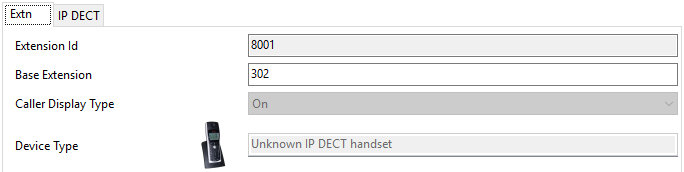
- Select the IP DECT tab.
ADDITIONAL INFORMATION:The appearance of this tab varies depending on whether the IP DECT line has Enable Provisioning selected or not. The following example shows this tab when provisioning is enabled.
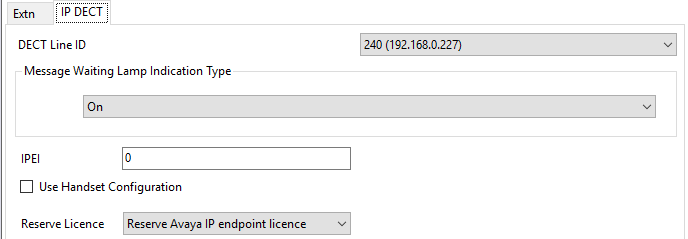
- Set the Message Waiting Lamp Indication Type to On.
- Select the
- Set the IPEI to match that of the handset. For new phones the IPEI is shown on the screen. For other phones it can be displayed by selecting Menu | Settings | Device Info | IPEI/IPDI. It is also shown on a label under the battery.
ADDITIONAL INFORMATION:
-
For 3700 Series phones, the IPEI can be displayed by selecting Menu | Settings | Device Info | IPEI/IPDI. It is also printed on a label under the phone's battery.
-
If Use Handset Configuration. is selected, the handset user is able to set the phone language and date/time format. If not selected, those settings will be driven by the system or user locale settings in the IP Office configuration.
-
Click OK.
-
IP Office Manager will prompt whether you want to create an associated user. Select Yes.
-
The user settings are displayed. Adjust any of these if required and click OK.
-
Repeat the process to create any other extension and user entries required. Then save the configuration back to the IP Office system.
-