

AVAYA DOCUMENTATION CENTER
Find answers to your technical questions and learn how to use our products
Deploying Avaya Wireless DECT with IP Office
Upgrading Phone Software
Avaya Wireless DECT is supported on a range of Avaya systems. For IP Office operation, you must use software specifically documented as tested and supported with IP Office. Details of supported software is included in the IP Office Technical Bulletin for each release.
- Within the Avaya Device Manager, select the Devices tab.
ADDITIONAL INFORMATION:
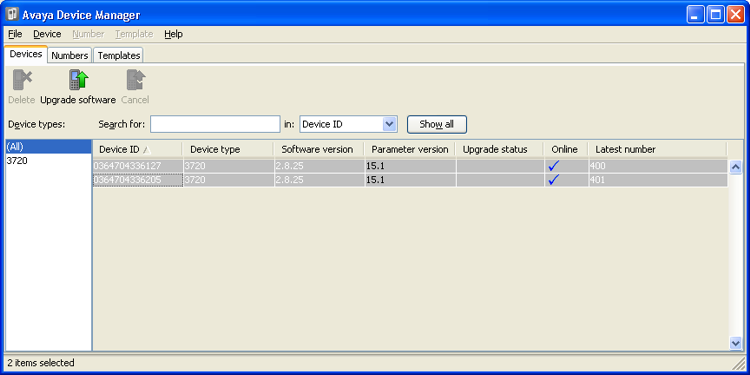
- The current software version of each phone is shown. Compare this to the software versions available, shown by the version set as part of the .pkg file name included with the Avaya Wireless DECT software.
ADDITIONAL INFORMATION:
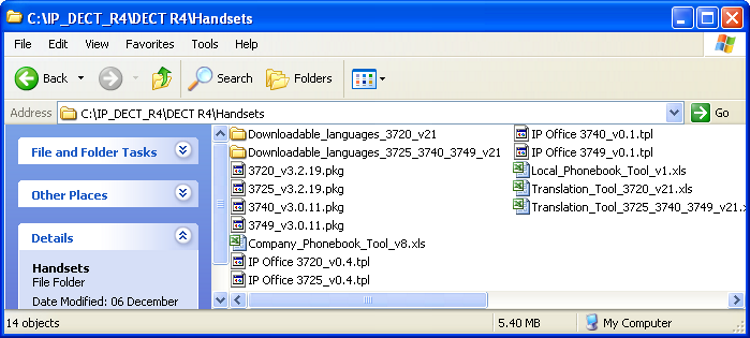
- In the device manager, select the phones that you want to upgrade.
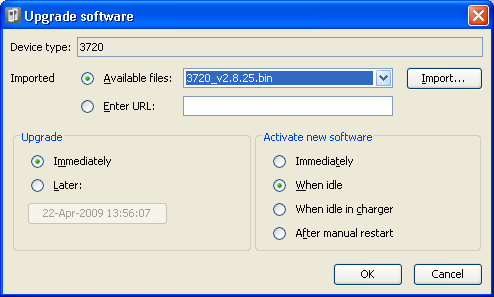
- Click Upgrade Software. The menu shown depends on whether you are using the AIWS for an over-the-air upgrade or WinPDM for an in-charger upgrade.
ADDITIONAL INFORMATION:
-
AIWS Upgrade Software MenuThis menu is shown when using the AIWS based device manager to upgrade phones over the air. This method supports a number of additional options but is much slower than upgrading phones in an advanced charger.
-
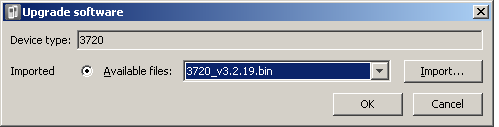
Advanced Charger/WinPDM Upgrade MenuThis menu is shown when using the Windows based device manager to upgrade a phone currently in an advanced charger connected to the PC by USB or LAN. See Installing Windows Device Manager.
-
If you have already imported the parameter definition files for the phones, use the Available Files drop-down to select the software bin file for the type of phone being upgraded. Otherwise click on Import and browse to the .pkg files for the phone type.
-
Select the other upgrade settings required and click OK.The upgrade begins. The following images show a typical upgrade as it is being performed on a 3720 device.



-