AVAYA DOCUMENTATION CENTER
Find answers to your technical questions and learn how to use our products
Implementing and Administering Avaya Aura® Media Server
Configuring a backup task
About this task
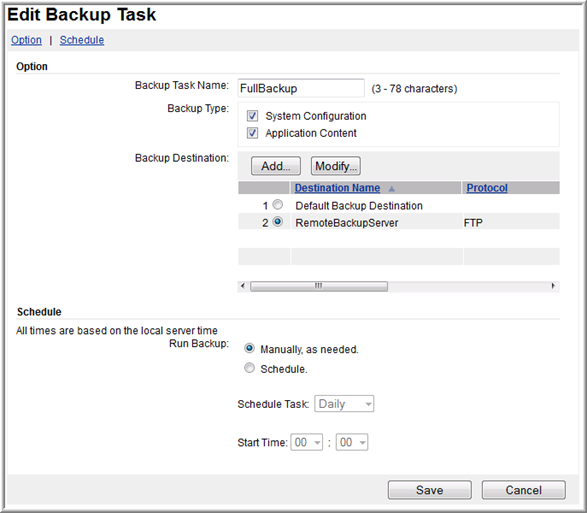
EM organizes backups as tasks. These tasks contain your selected backup options and specify the location where the backup is stored.
You can create an automated backup task to create backups daily, weekly, monthly or at one particular time. You can store the backup in a local destination directory. Alternatively, you can push the backup file to a remote server by using File Transfer Protocol (FTP) or SFTP (Secure File Transfer Protocol).
You cannot change the predefined local Default Backup Destination. If the administrator chooses to create a backup using this destination, EM stores the backup files in the following predefined local directory on Avaya Aura® MS.
$MASHOME/platdata/EAM/Backups
You can configure remote backup destinations and these destinations can be shared by multiple backup tasks. When you perform backups to remote destinations, EM uploads the backup files to the specified FTP or SFTP server. If required, EM deletes the local backup file from Avaya Aura® MS after the file transfer completes.
There are two types of content that you can include in the backups: System Configuration and Application Content. You can create one task for both the backup types or create separate tasks, each with independent schedules. Each backup type contains the following information:
Type of content |
Description |
|---|---|
System Configuration |
Contains all the Avaya Aura® MS system settings that the Avaya Aura® MS management system has configured. For example, the settings you configure with the EM. |
Application Content |
Includes data that the Avaya Aura® MS Content Store manages. The data can either be the data that the applications generate or subscribers save. Examples of these data include, application prompts, subscriber preferences for a conferencing service or deposited recordings and user preferences for a service. The backup type does not include files stored on Avaya Aura® MS which are not stored in Content Store. |
Perform the following procedure to define or update backup tasks and destinations using EM:
Procedure
- To create a new backup task either click Add or select an existing task from the list and click Edit.