

AVAYA DOCUMENTATION CENTER
Find answers to your technical questions and learn how to use our products
Implementing and Administering Avaya Aura® Media Server
Configuring the Backup server for High Availability
About this task
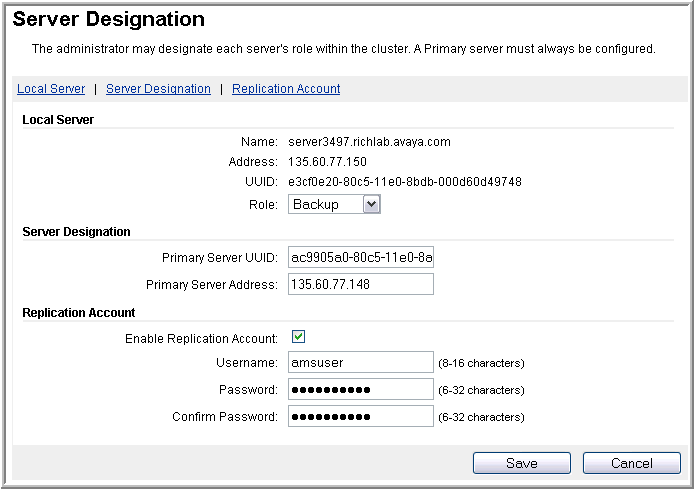
Using EM, perform the following procedure to configure Avaya Aura® MS as a Backup server in a 1+1 High Availability cluster.
Before you begin
Ensure to replace the default staging certificates. See Replacing Default Staging certificates for the procedure.
Configure a separate Avaya Aura® MS as a Primary server with a Replication Account enabled.
Obtain the UUID and the IPv4 address of the Primary server and the user name and password of the Replication Account.
Ensure that the Primary and Backup servers are on the same subnet.
Deploy a media server designated as the Backup server. To protect against hardware failure, High Availability media servers deployed as virtual machines (VMs) should be deployed on separate, equally capable host servers.
The Backup server must have identical configuration to the Primary server so that it can take over the full media processing load. Ensure that the servers in this cluster meet the 1+1 High Availability requirements listed at the beginning of this section.
Procedure
- To designate a Linux®-based Avaya Aura® MS as a Backup server, navigate to .
Next Steps
If you pair the Backup media server to a Primary server enrolled in System Manager, then you must also enroll the Backup media server in System Manager.