

AVAYA DOCUMENTATION CENTER
Find answers to your technical questions and learn how to use our products
Implementing and Administering Avaya Aura® Media Server
Configuring OM settings
About this task
Perform the following procedure to choose the Operational Measurements (OMs) that are available for Archiving, Monitoring, Delivery and the OM that are used as Key Performance Indicators (KPI):
Procedure
- Navigate to .
 Tip:
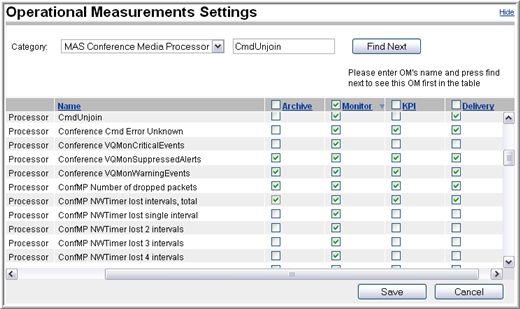
Tip:You can sort the columns by clicking on the column name.
You can filter the displayed OMs by selecting a category from the Category drop-down menu.
If you know the name of the OM to configure, type the name in the field to the left of the Find Next button. Then press Enter or click Find Next.
You can use the check box next to the column title to select or deselect all OMs listed in that column.