

Viewing event logs

Last Updated : May 07, 2015 |

About this task

The Event Logs reflect system state and alarm transitions, error conditions and system operational details.

Perform the following procedure to gain access to the saved Avaya Aura® MS Event Logs:

Procedure

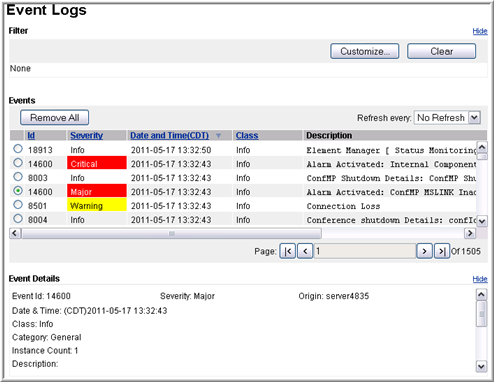
  1. Navigate to EM > System Status > Logs > Event Logs.
  2. To set the event data refresh interval, use the Refresh every drop-down menu.
  3. Select an event that is listed.

    The system displays the details at the bottom of the page.

    Use the vertical and horizontal scroll bars to view the information.

  4. Click on one of the heading names: Id, Severity, Date and Time, or Description.

    The system sorts and displays alarms in ascending or descending order.

  5. To go back in the history of the Event Logs, use the Page navigation buttons.
  6. Click Customize…, in the upper-right corner of the Event Logs page, to filter the logs which are displayed.
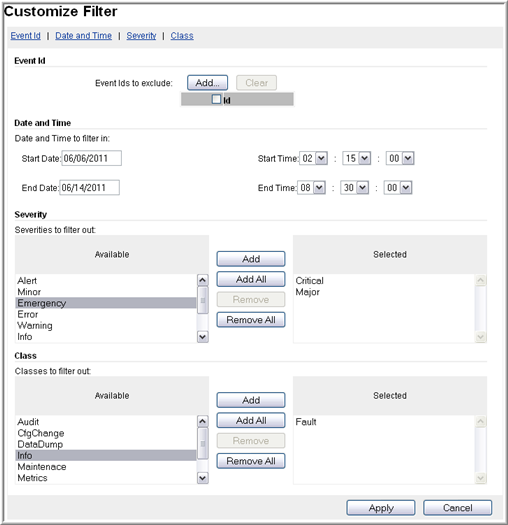
  7. On the Customize Filter page, select the Event Id, Date and Time, Severity, and Class types to include, using the Add buttons.
  8. Click Apply to return to the Event Logs page with the filtered results.
  9. To clear the applied filter, click Clear in the upper-right corner of the Event Logs page.